How to Use
1. Start LogonTracer
2. Accessing the Web GUI
3. Import EVTX
4. Search and visualize the event log
5. Importance rank of accounts and hosts
6. Timeline
Start LogonTracer by the following command option -r.
Use -h to see help message.
$ python3 logontracer.py -r -o [PORT] -u [USERNAME] -p [PASSWORD] -s [IP Address]- -r: Launch web server
- -o: Port number where the web server operates (ex: 8080)
- -u: Neo4j username (“neo4j” by default)
- -p: Neo4j password
- -s: Address where the web server operates (ex: localhost)
Access http://[LogonTracer_Server]:8080/ via Web browser. Please make sure to enable JavaScript on your browser.
Supported browsers
- Mozilla Firefox
- Google Chrome
- Microsoft Edge
Import the event log using Web GUI or logontracer.py. After importing EVTX, you need to reload the web page.
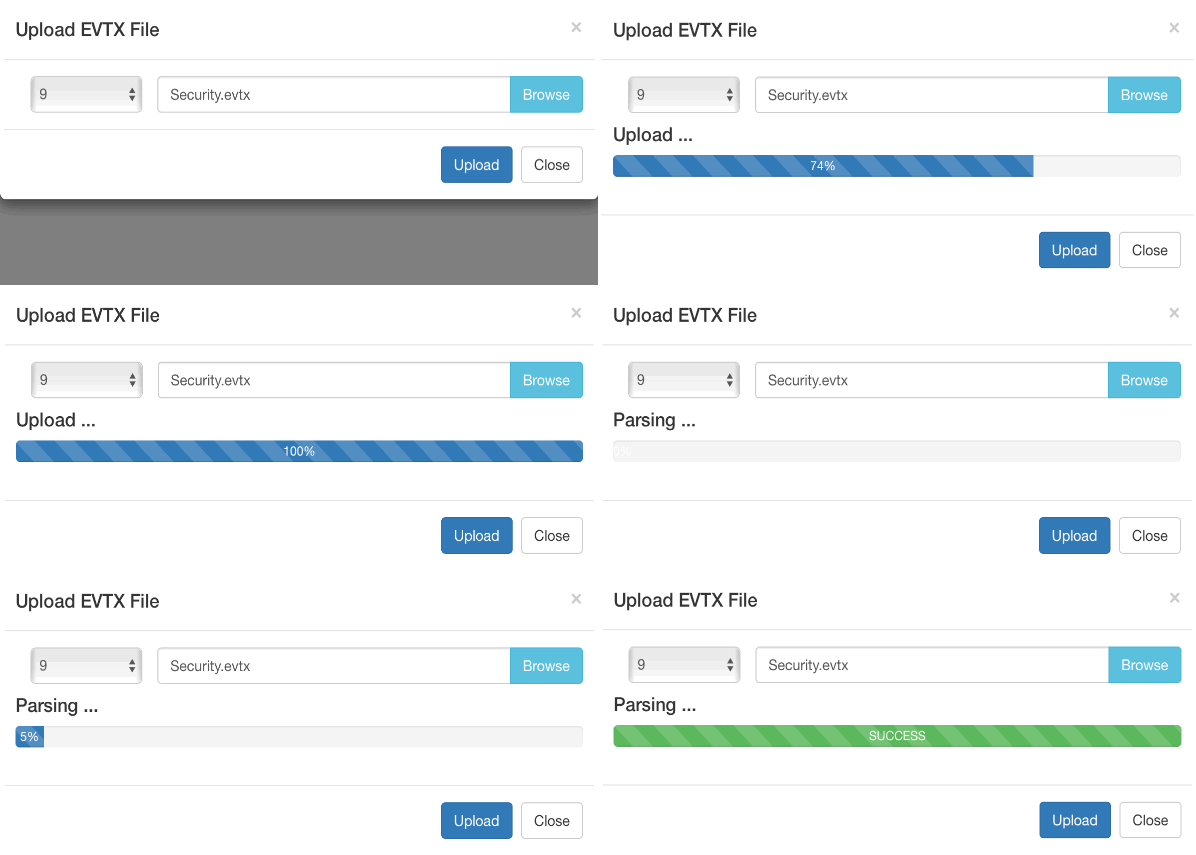
Event log can be imported with upload EVTX button. If the import of the EVTX file is not successful, please check the "Log" button.
Event log can be imported by logontracer.py option -e.
$ python3 logontracer.py -e [EVTX File] -z [TIME Zone] -u [USERNAME] -p [PASSWORD] -s [IP Address]- -e: EVTX filename to import
- -z: Time zone (ex: +9, -5)
When successfuly imported, you will get messages like below.
$ python3 logontracer.py -e Security.evtx -z -3 -u neo4j -p password -s localhost
/usr/local/lib/python3.5/dist-packages/statsmodels/compat/pandas.py:56: FutureWarning: The pandas.core.datetools module is deprecated and will be removed in a future version. Please use the pandas.tseries module instead.
from pandas.core import datetools
[*] Script start. 2017/12/17 22:02:27
[*] Delete all nodes and relationships from this Neo4j database.
[*] Parse the EVTX file Security.evtx.
[*] Next recode number is 62032.
[*] Time zone is -3.
[*] Start parsing the EVTX file.
[*] Now loading 62000 records.
[*] Load finished.
[*] Total Event log is 62031.
[*] Calculate PageRank.
[*] Calculate ChangeFinder.
[*] Creating a graph data.
[*] Creation of a graph data finished.
[*] Script end. 2017/12/17 22:15:04Use the navigation bar to search for account name, host name, IP address, event id and event count. You can also download graph data of CSV, JPG, PNG and JSON by Export button.

Use drop-down menu to search for account names matching specific criteria.
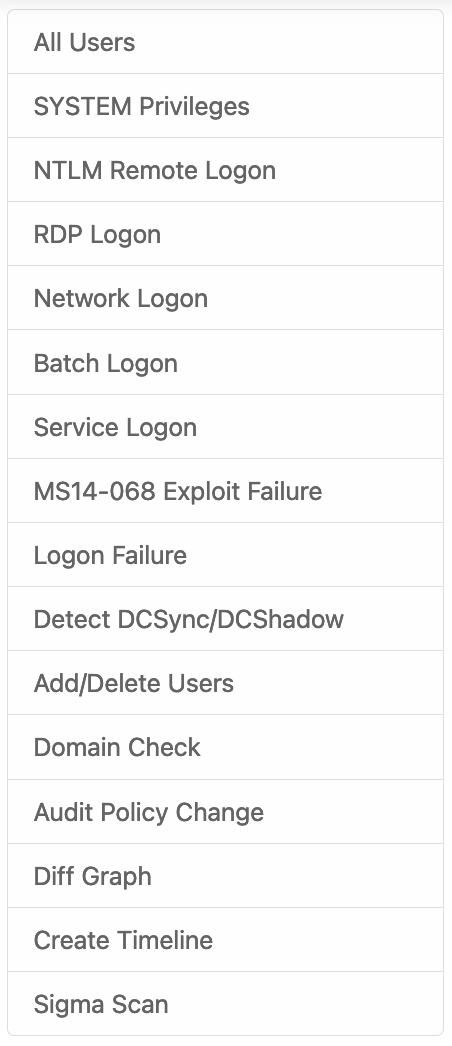
- All users: Visualizing all users and hosts.
- SYSTEM privileges: Visualizing users with system privileges.
- RDP Logon: Visualizing RDP logon users and hosts (Logon type: 10).
- Network Logon: Visualizing logon users and hosts from remote network (Logon type: 3).
- Batch Logon: Visualizing batch server logon (Logon type: 4).
- Service Logon: Visualizing Services Control Manager logon (Logon type: 5).
- ms14-068 exploit failure: Visualizing the error log that the ms14-068 exploit failed.
- Logon failure: Visualizing failed logon.
-
 SYSTEM privileges account
 -
 Standard user account
 -
 IP address and host
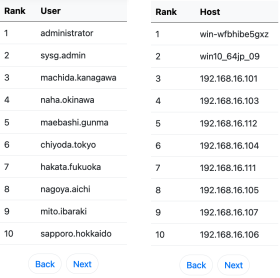
LogonTracer is able to provide leveraged accounts/hosts by ranking. LogonTracer performs network analysis on the event log graph, and creates a ranking based on the “centrality” of each node. Centrality is an index which indicates each node’s proximity to the centre in a network. For calculation of centrality, PageRank is applied. PageRank is an algorithm for checking the importance of web pages. LogonTracer uses PageRank to examine the importance of accounts and hosts in a domain network. An account with high PageRank logs on to many hosts may be used by the attackers' lateral movement.
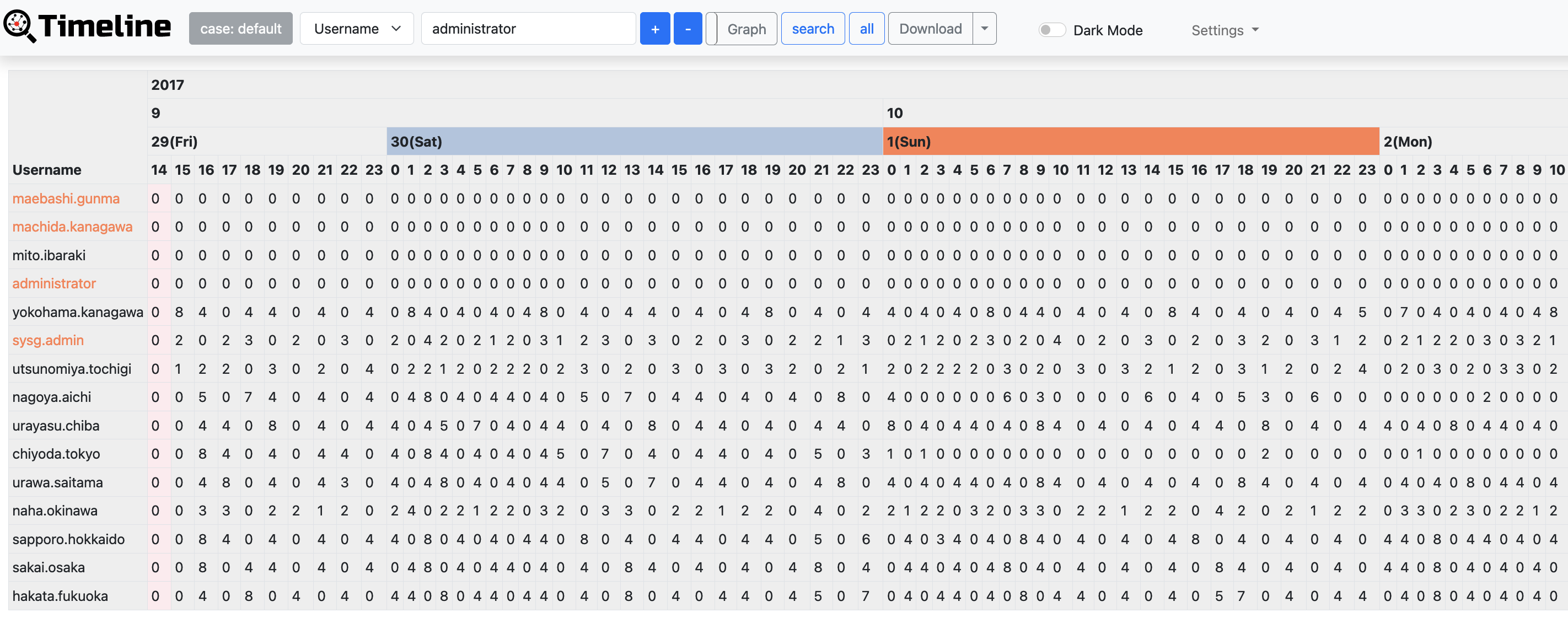
Timeline button displays hourly event log counts in time series. Hosts with drastic changes are highlighted. For detecting the increase of the count, Change Finder is applied as an anomaly detection method. To download timeline summary and detailed CSV data, click "Download".