| page_type | sample | |||||||
|---|---|---|---|---|---|---|---|---|
| urlFragment | office-add-in-contextual-tabs | |||||||
| products |
|
|||||||
| languages |
|
|||||||
| extensions |
|
|||||||
| description | Learn how to create a contextual tab that displays on the ribbon in response to the context of the Office UI. |
This sample accomplishes the following tasks using Office ribbon APIs.
- Creates a custom contextual tab named Table Data.
- Creates a table in Excel. When the focus is inside the table, the custom tab is displayed.
- When the focus is outside the table, the custom tab is hidden.
To learn more about custom contextual tabs, see Create custom contextual tabs in Office Add-ins.

- Excel on Windows
- Excel on Mac
- Excel on the web
- Microsoft 365
- Must meet the prerequisites outlined in Create custom contextual tabs in Office Add-ins.
By default, the sample uses an add-in only manifest. However, you can switch the project between the add-in only manifest and the unified manifest for Microsoft 365. For more information about the differences between them, see Office Add-ins manifest. To continue with the add-in only manifest, skip ahead to the Run the sample section.
Copy all the files from the manifest-configurations/unified subfolder to the sample's root folder, replacing any existing files that have the same names. We recommend that you delete the manifest.xml file from the root folder, so only files needed for the unified manifest are present. Then, run the sample.
To switch back to the add-in only manifest, copy the files from the manifest-configurations/add-in-only subfolder to the sample's root folder. We recommend that you delete the manifest.json file from the root folder.
Use localhost to run the add-in.
-
Clone or download this repository.
-
From a command prompt, go to the root of the project folder Samples/office-contextual-tabs.
-
Run
npm install. -
Run
npm start. This starts the web server on localhost and sideloads the manifest file.Tip: To sideload an add-in that uses the add-in only manifest on other Excel clients, see the following:
-
Follow the steps in Try it out to test the sample.
-
To stop the web server and uninstall the add-in, run
npm stop.
Once the add-in is loaded, follow the steps to try out the functionality.
-
In Excel, select Office Add-ins contextual tab from the ribbon.
The add-in's task pane opens.
-
In the task pane, select your preferred data source (Excel File or SQL Database). Then, select Import data.
A Sample spreadsheet with a sample sales table is added to the workbook.
-
Select any cell in the table.
The Table Data tab appears in the ribbon.
-
Select the Table Data tab from the ribbon. Then, select an action from the tab.
- Import data - Imports sales data from an External Excel file or SQL Database.
- Refresh - Imports data from the selected data source. Overwrites any changes you made to the table. The button is only available when you make changes to the table.
- Submit - Submits your changes to the data source. The button is only available when you make changes to the table.
- Show task pane - Opens the add-in's task pane.
This sample inserts a table of fictitious sales data for Contoso. The data is pulled from one of two mock data sources: a mock Excel file or a mock SQL database. The user can select which data source to use either in the task pane or in the contextual tab.
After the sales table is created, the sample creates a contextual tab named Table Data. When you select any cell or range inside the table, the contextual tab is displayed on the ribbon. When you select any cell or range outside the table, the contextual tab is hidden.
The contextual tab supports commands related to working with the sales data. When you make changes you can submit them and update the mock data source. Or you can refresh the table from the mock data source.
Contextual tabs requires the manifest.xml file to specify loading the shared JavaScript runtime. For more information on configuring the shared runtime, see Configure your Office Add-in to use a shared JavaScript runtime.
The src/commands/ribbonJSON.js file describes the contextual tab's buttons, groups, and menu items. It returns the JSON from the getContextualRibbonJSON() function and the sample code stores this JSON in a global variable.
As buttons, or the tab itself, are shown or hidden, the g.contextualTab global variable is used to always maintain the correct contextual tab state. When the tab needs to be updated on the ribbon (to turn a UI element on or off), a call is made to Office.ribbon.requestUpdate(). This calls occurs in the setContextualTabVisibility() function of the src/utilities/utilities.js file.
When you build your own add-in, you'll need to decide what context determines which tabs or UI elements are shown. In this sample, the contextual tab appears when focus is inside the table, and the Refresh and Submit buttons are enabled when the table is changed.
When the user imports data to create the table, createSampleTable() adds handlers for the onSelectionChanged and onChanged events. As the user moves the selection into or out of the table, the onSelectionChanged() function is called, which displays the contextual tab when the selection is inside the table. When the user makes changes to the table, onChanged() is called, and the Refresh and Submit buttons are enabled.
The following code snippets highlight the onSelectionChanged and onChanged event handlers. For the detailed code, see the src/utilities/utilities.js file.
async function createSampleTable(mockDataSource) {
  ...

    // Add event handlers.
    salesTable.onSelectionChanged.add(onSelectionChange);
    salesTable.onChanged.add(onChanged);

    ...
}

/**
 * Handles the onSelectionChange event. If selection is inside the table, the Contoso custom tab is shown.
 * Otherwise, the Contoso custom tab is hidden.
 * @param {} args The arguments for the selection changed event.
 */
function onSelectionChange(args) {
  let g = getGlobal();
  if (g.isTableSelected !== args.isInsideTable) {
    g.isTableSelected = args.isInsideTable;
    setContextualTabVisibility(args.isInsideTable);
  }
}

/**
 * Handles the onChanged event. When data in the sales table is changed,
 * enable the Refresh and Submit buttons.
 */
function onChanged() {
  let g = getGlobal();
  // Check if dirty flag was set (flag avoids extra unnecessary ribbon operations).
  if (!g.isTableDirty) {
    g.isTableDirty = true;

    // Enable the Refresh and Submit buttons.
    setSyncButtonEnabled(true);
  }
}- Did you experience any problems with the sample? Create an issue and we'll help you out.
- We'd love to get your feedback about this sample. Go to our Office samples survey to give feedback and suggest improvements.
- For general questions about developing Office Add-ins, go to Microsoft Q&A using the office-js-dev tag.
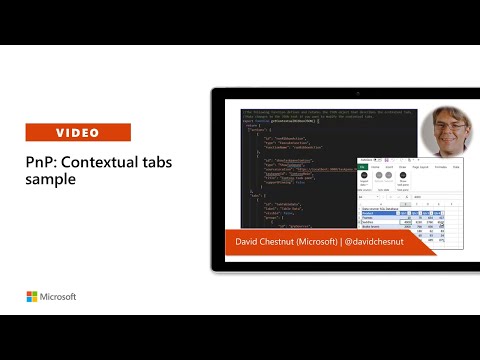
Demonstration video:
| Solution | Authors |
|---|---|
| Create custom contextual tabs on the ribbon | Microsoft |
| Version | Date | Comments |
|---|---|---|
| 1.0 | February 11, 2021 | Initial release |
| 1.1 | May 11, 2021 | Removed yo office and modified to be GitHub hosted |
| 1.2 | April 27, 2026 | Added support for the unified manifest for Microsoft 365 |
Copyright (c) 2021 Microsoft Corporation. All rights reserved.
This project has adopted the Microsoft Open Source Code of Conduct. For more information, see the Code of Conduct FAQ or contact opencode@microsoft.com with any additional questions or comments.