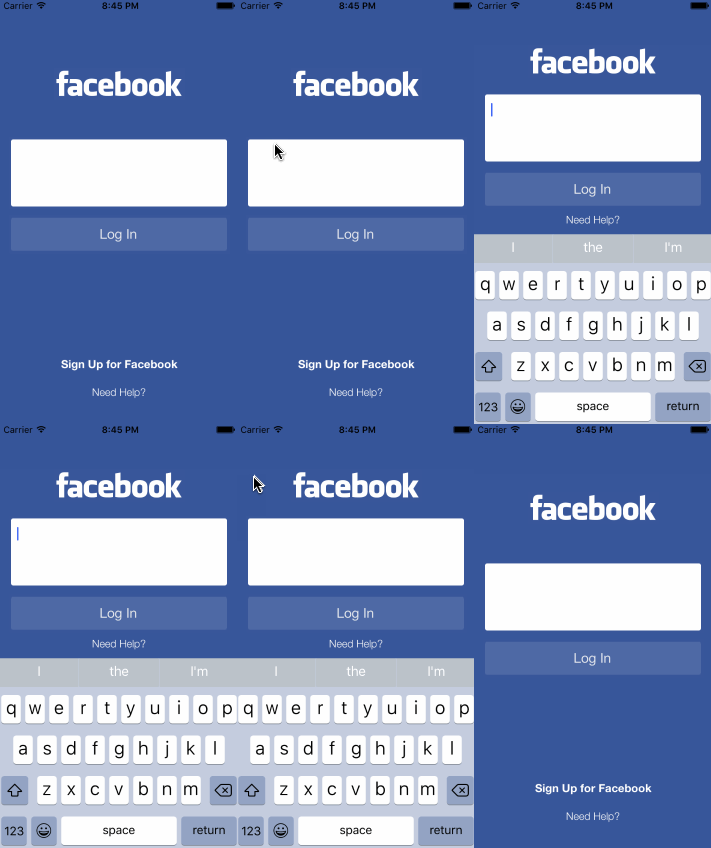
Registering for Keyboard Events

Often, you will have to rearrange views when the keyboard is shown or hidden to ensure that the appropriate views and controls are visible while the user is typing. To achieve this, we will register for the keyboard events which are fired when the keyboard is shown or hidden.
This mechanism is called NSNotifications. It is commonly used for system events like keyboard, device rotation, and coming back from or going into standby. For example, when coming back from standby, it's common to refresh the network data of the view controller.
In your view controller, define 2 methods that you want to be called when the keyboard is shown or hidden.
func keyboardWillShow(notification: NSNotification!) {

}

func keyboardWillHide(notification: NSNotification!) {

}
You can put the methods above anywhere in the view controller file.
Within the init or viewDidLoad methods, register for keyboard events and tie them to the methods you defined in Step 1.
NSNotificationCenter.defaultCenter().addObserver(self, selector: "keyboardWillShow:", name: UIKeyboardWillShowNotification, object: nil)
NSNotificationCenter.defaultCenter().addObserver(self, selector: "keyboardWillHide:", name: UIKeyboardWillHideNotification, object: nil)
Note: You must place a colon in selector names for functions with a parameter, i.e "keyboardWillShow:"
In this use case, we want to move several views the same offset amount when the keyboard shows. For this reason, it is useful to add all the views you want to move into a parent view; this way you only have to move the parent view, and all the other views within will go along for the ride.
- Add the Parent View
- Add the Child Views inside the parent view.
- Create an outlet for the fieldParentView. Drag from fieldParentView in the Document Outline to your ViewContoller swift file.

Near the top of the ViewController, where you create outlets, define variables for the initial y position of the text field and the offset amount.
var initialY: CGFloat!
let offset: CGFloat!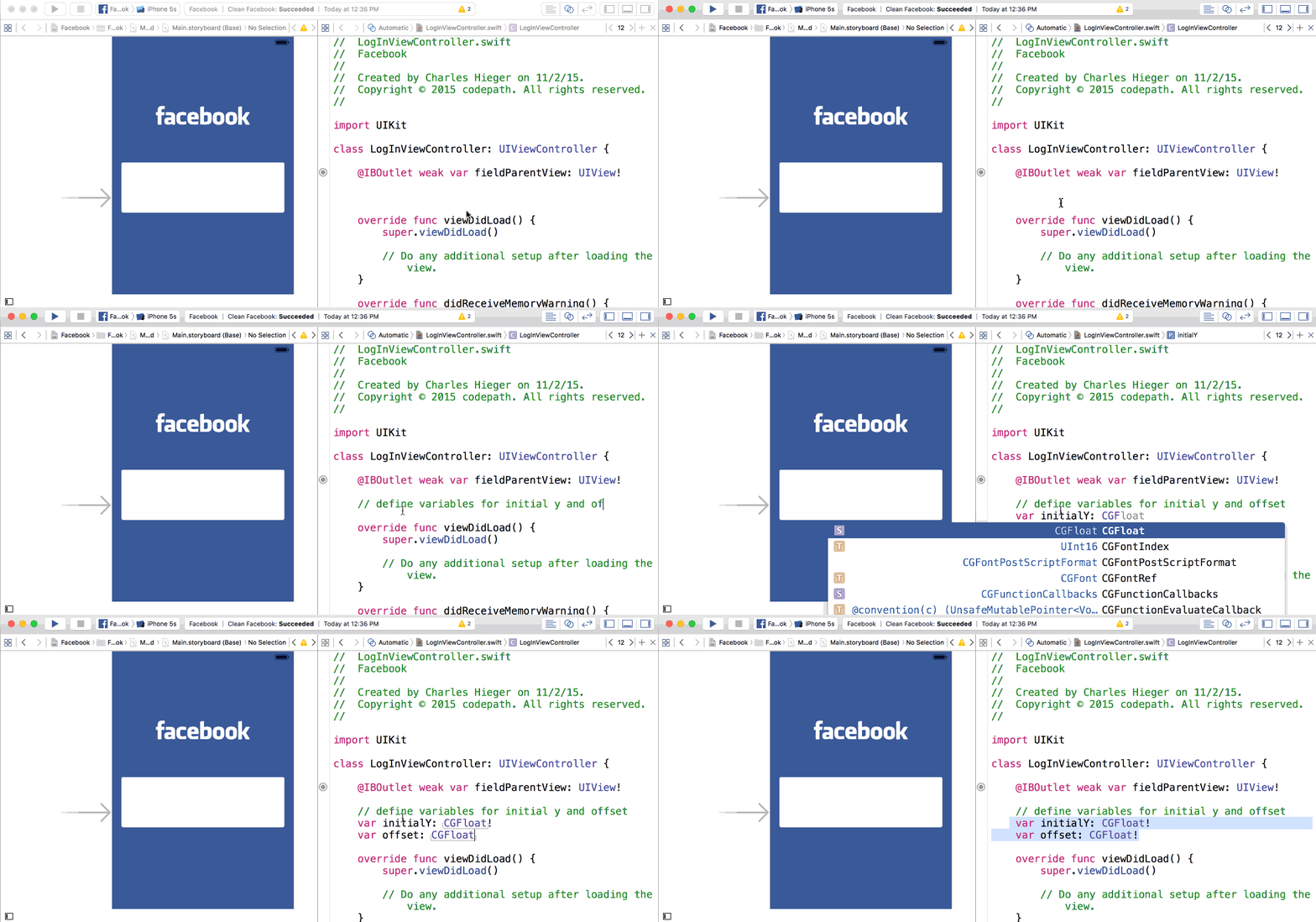
Within the viewDidLoad method...
- Record the initial y position of the
fieldParentView - Give your
offsetvariable a value. This is the amount that your view will be offset when the keyboard is shown. Remember, going "up" on the screen is decreasing the Y value amount.
initialY = fieldParentView.frame.origin.y
offset = -50

Within the keyboardWillShow method, offset the y position of the fieldParentView using your offset value.
username.frame.origin.y = initialY + offsetNote: If your keyboard does not show when you click within the text field. Make sure that you have the external keyboard simulation disabled. Go to menu Hardware | Keyboard and make sure "Connect Hardware Keyboard" is unchecked. You can also "toggle" the software keyboard using "cmd + k".
Step 6: Move View Back When Keyboard is Hidden

Now we will simply move the UITextField back to its original y position when the keyboard is hidden. This will occur within the keyboardWillHide method.
username.frame.origin.y = initialY If you run the simulator now, you notice that when you click on the text field it will animate up as it should, but when you click away you cannot hide the keyboard. So we need to have the keyboard hide event triggered. A common way to do this is to tap away from the text field trigger a keyboard hide.
- Drag and drop a UITapGesture recognizer from the Object Library to the background view.
- Ctrl+click and drag from the Tap Gesture Recognizer to the View Controller shown in the assistant editor. We will select the Action option and name the handler
didTap. - Within the
didTapmethod we simply have the line
view.endEditing(true)This will trigger the keyboardWillHide method on our view controller.