Data warehouse setup
Given that you are in possession of a Oracle cloud account–in this example here, a Oracle Academy Cloud Program–access, log in to your account.
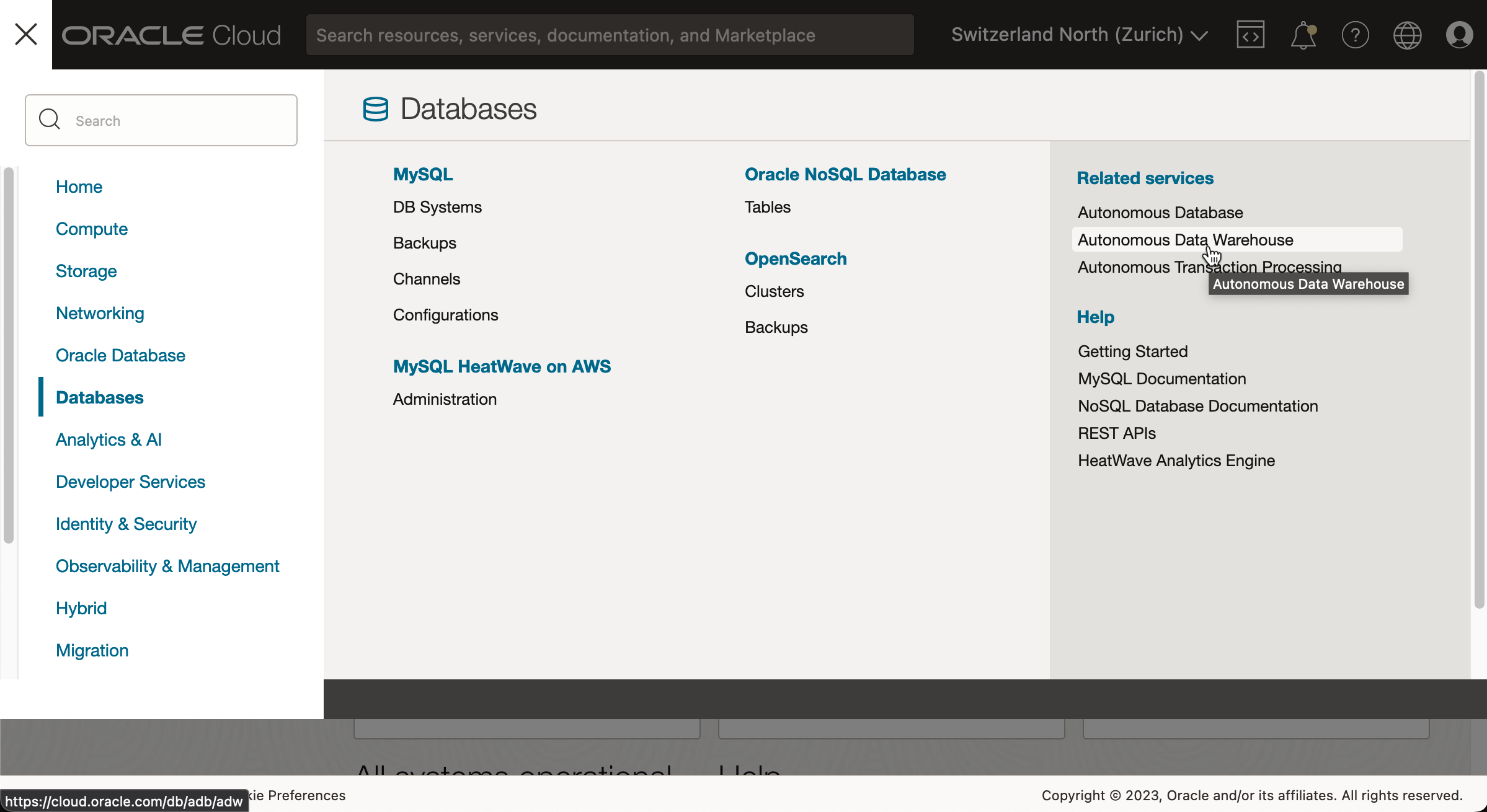
Using the left hand side navigation "Databases" entry, go to "Autonomous Data Warehouse".
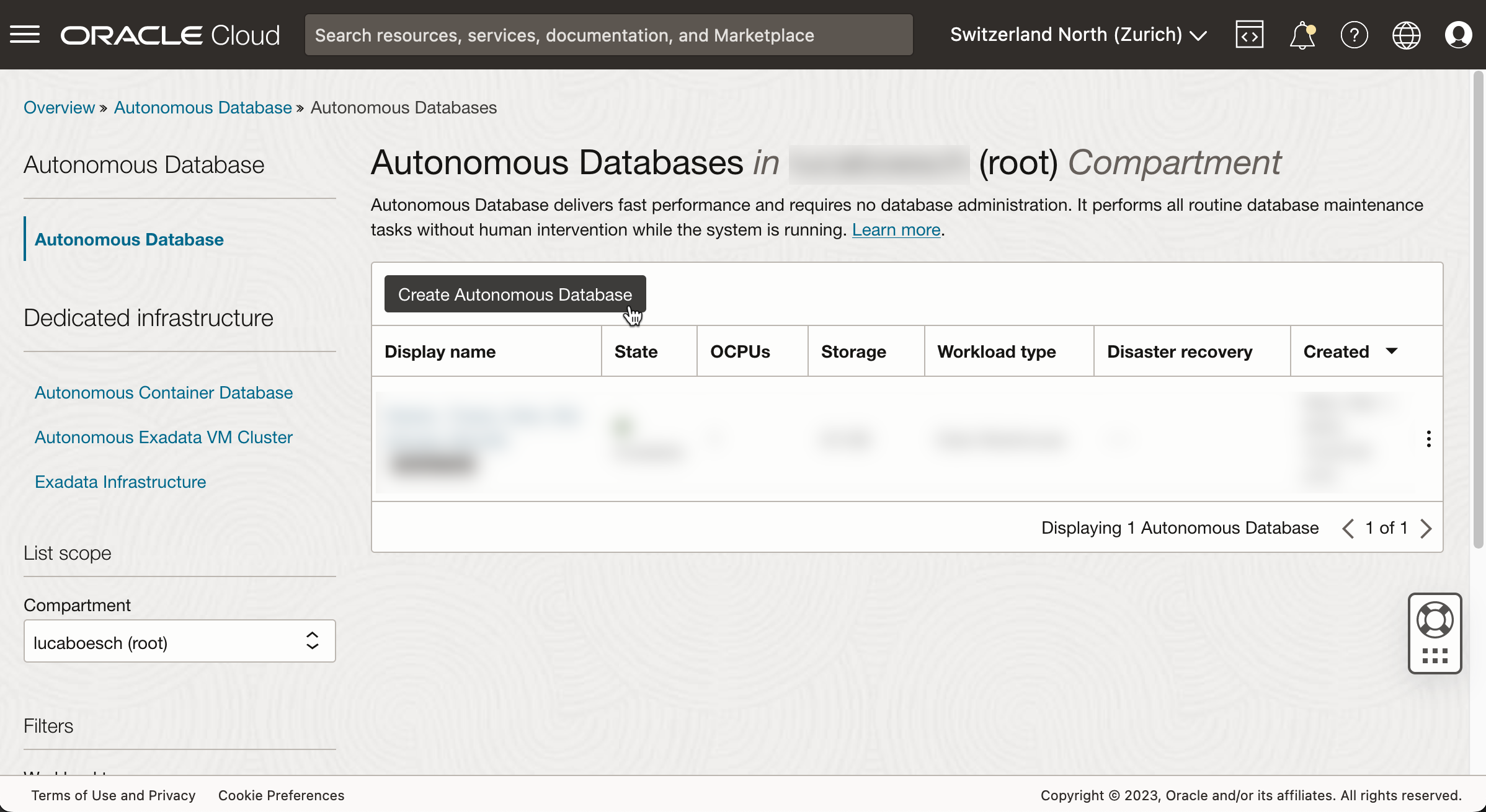
Click the "Create Autonomous Database" button (don't be confused if, even though you've chosen the 'Autonomous Data Warehouse' button, the title reads 'Autonomous Database.' The two terms seem to be often used interchangeably).
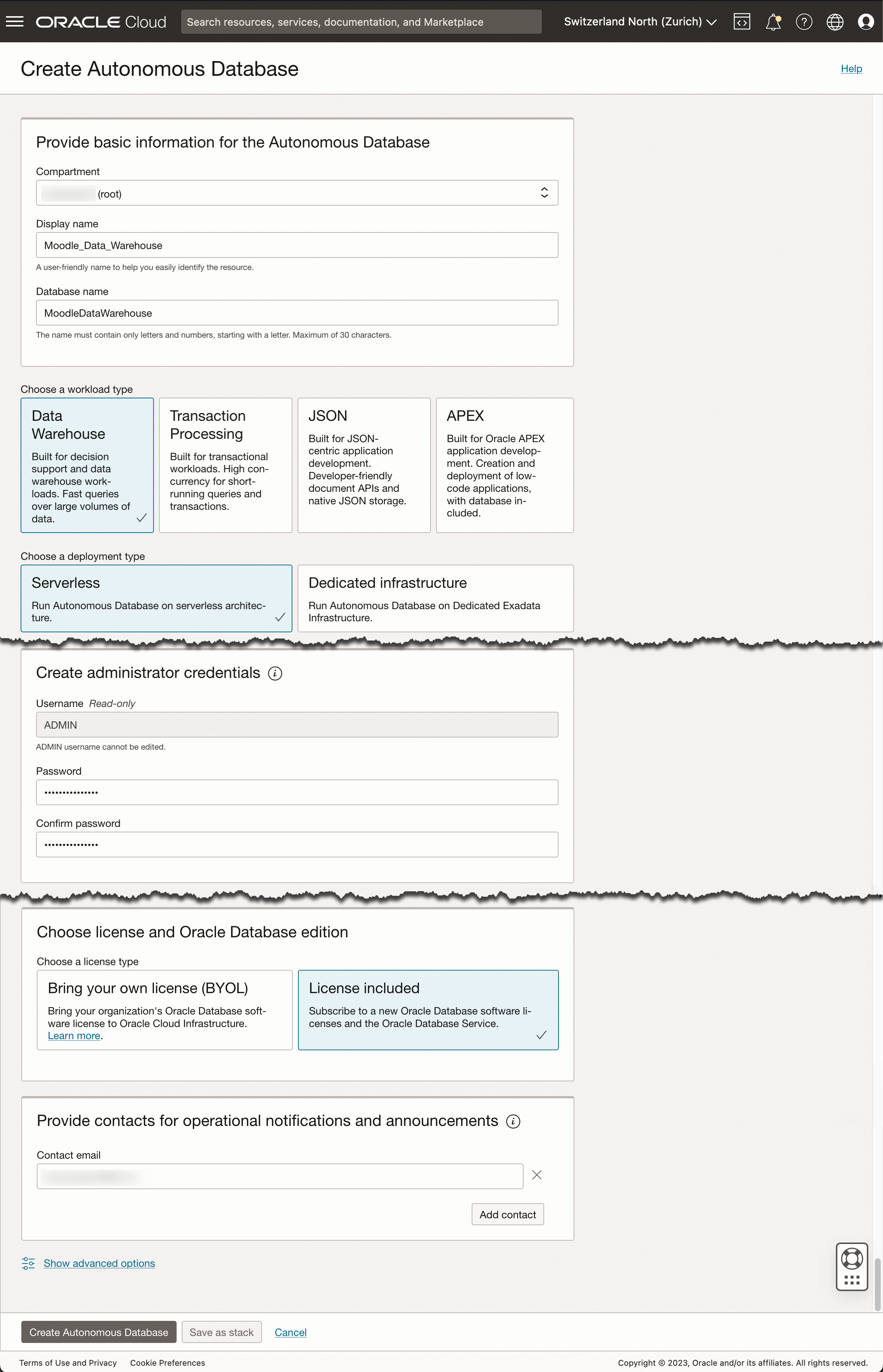
In the following page, choose a "Display name" as well as a "Database name" and create credentials for the "ADMIN" user. Under "License", choose "License included", and add a "Contact email" address and leave all other settings untouched.
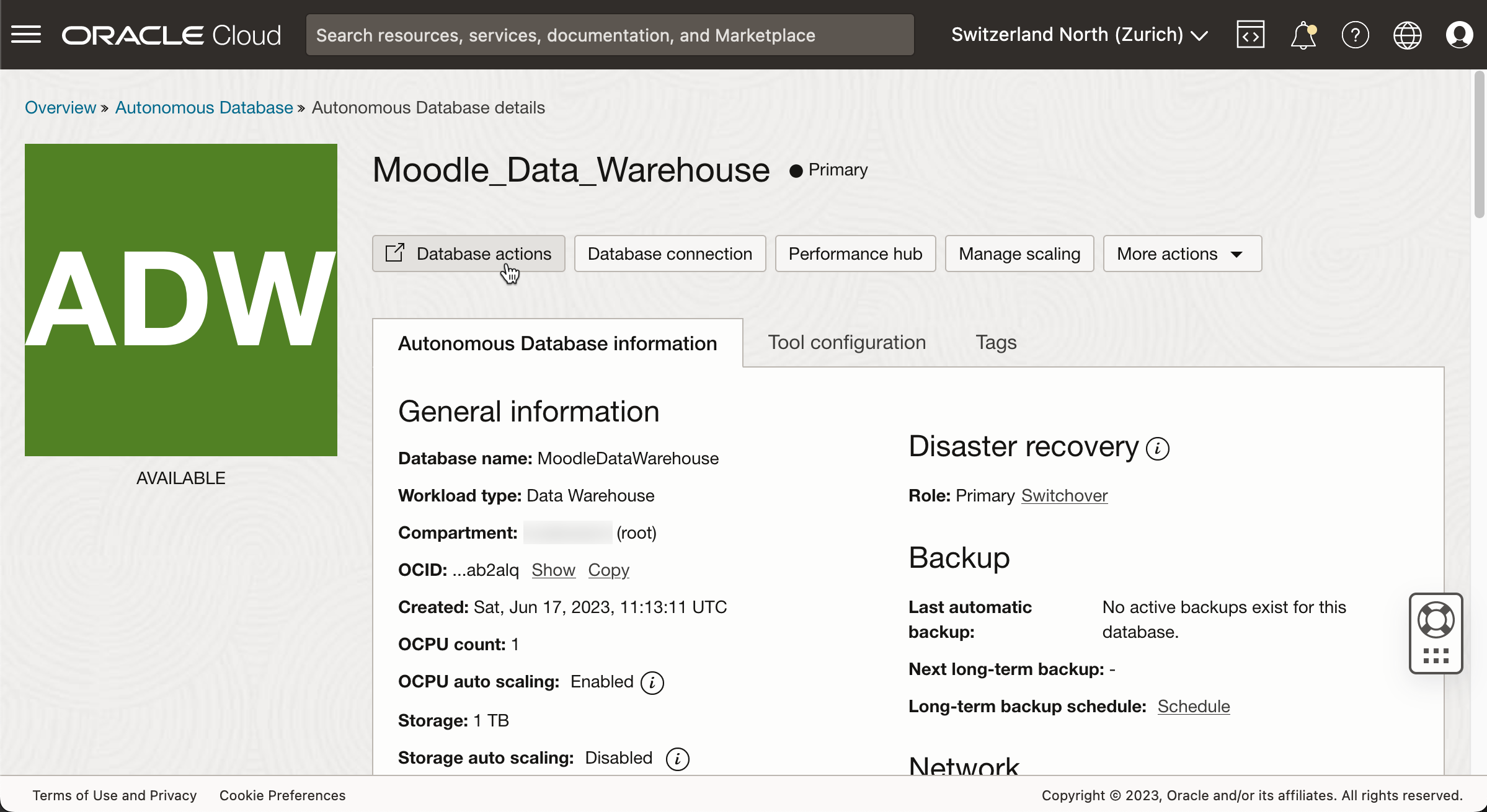
Then, wait until the state changes from "PROVISIONING" to "AVAILABLE". You also will be notified by mail.
After this, click the "Database actions" button and authenticate with the created credentials for user "ADMIN".
Scroll down to the "Administration" section, then click the "DATABASE USERS" tile.

Then, using the "Create user" button, create five other users, named "MONITORING", "STAGING", "CLEANSING", "CORE" and "MART" which will then simultaneously also create eponymous schemas.

Set "Graph" and "Web Access" to "On" and "Quota on tablespace DATA" to "UNLIMITED" and set credentials.

The ADMIN user and five additional users with their corresponding schemas are now available for use.
One additional thing is missing for successful transfer of query result data: the object storage bucket.
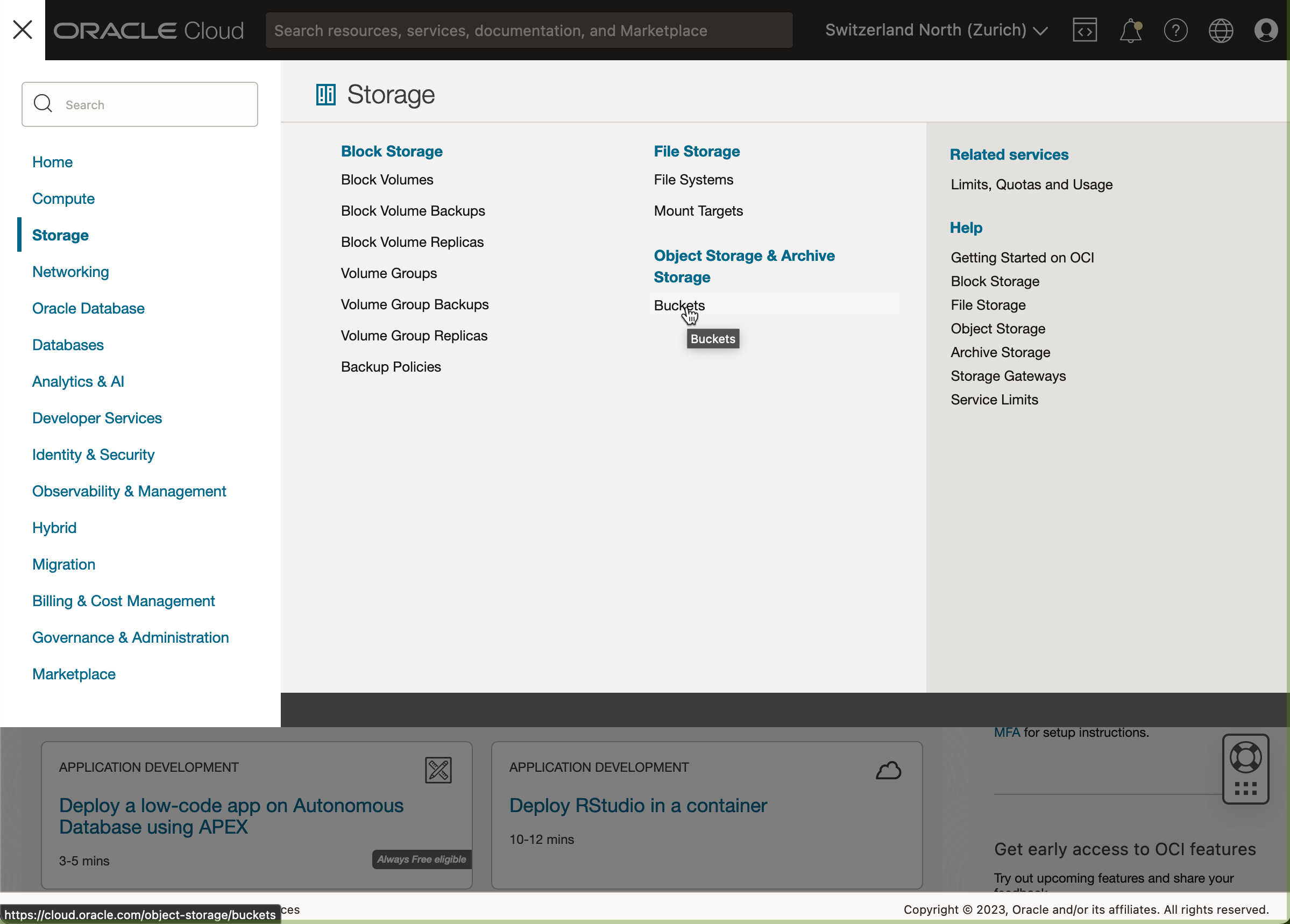
Using the left hand side navigation "Storage" entry, go to "Buckets" under "Object Storage & Archive Storage".
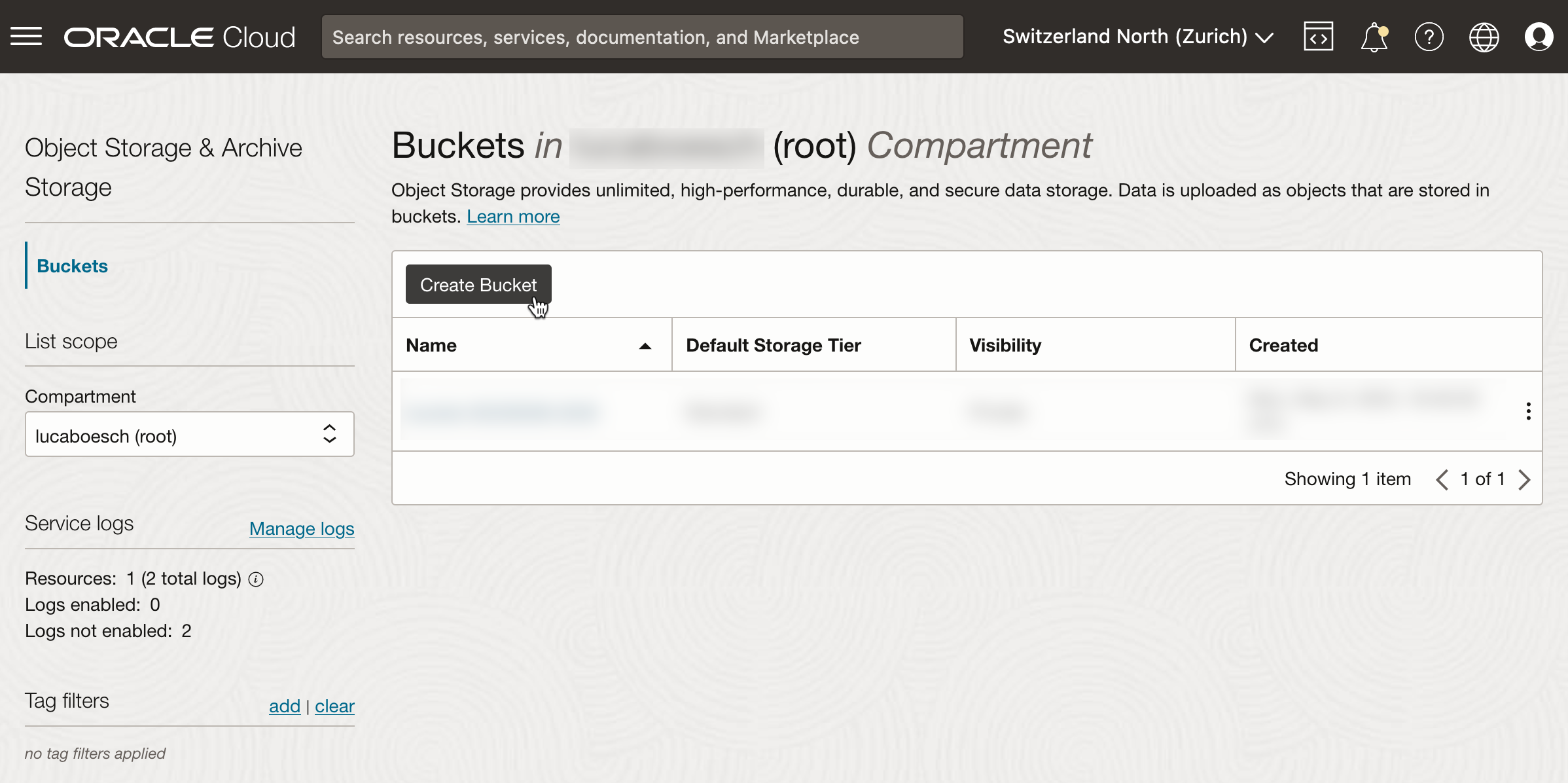
Click the "Create Bucket" button.
Confirm the creation of the bucket, which will be named bucket-yyyymmdd-hhss (e.g. bucket-20230617-2232) containing the parameters of the current time, without making any changes to the overlay presented.
Make sure in the properties of the bucket, activate "Emit Object Events".
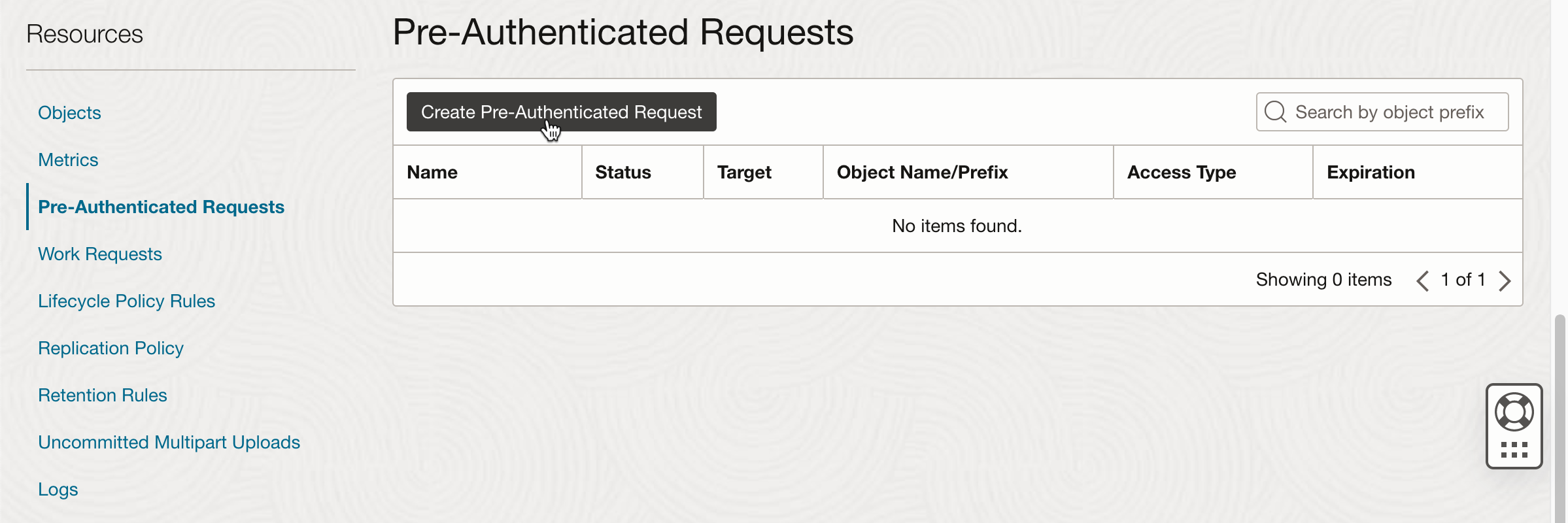
Then, to allow the desired data exchange, there is the need to activate Pre-Authenticated Requests. So, do click the according navigation link.
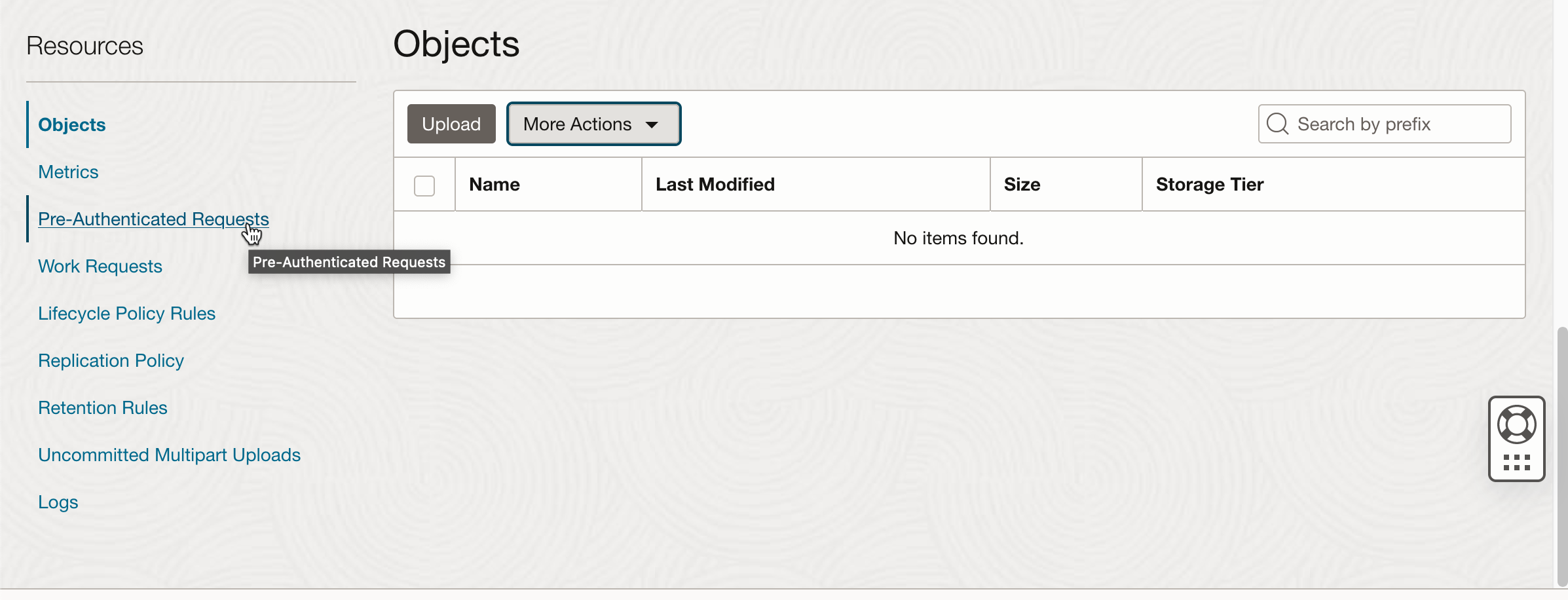
And then click the "Create Pre-Authenticated Request" button.
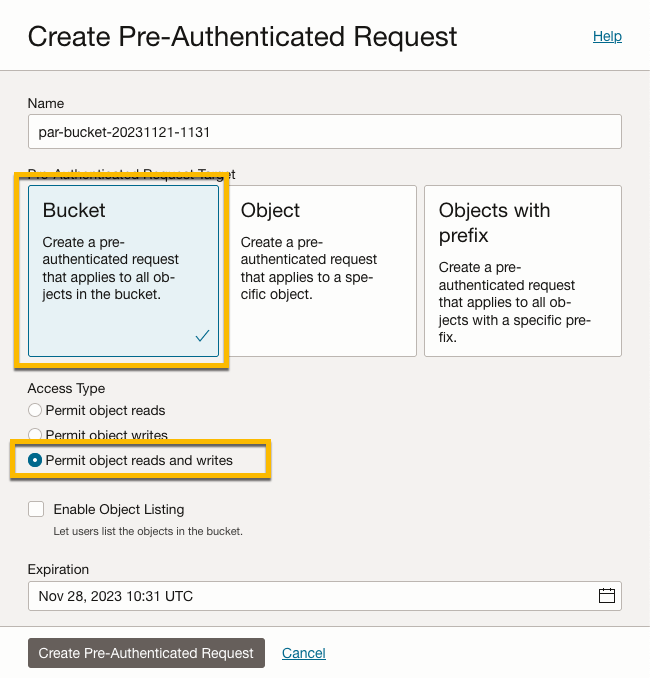
In the overlay, leave the settings as is, and set "Access Type" to "Permit objects write", and set "Expiration" to a date until data upload is required.
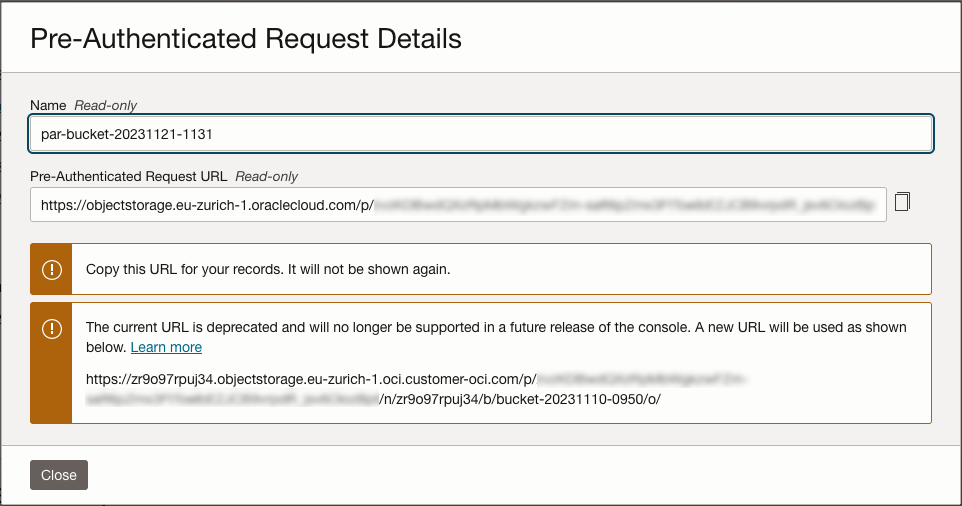
The resulting Pre-Authenticated Request URL is shown, and has to be copied.
For later read access by the provided scripts, an Object Store Auth Token has to be created, as explained in https://www.oracle.com/webfolder/technetwork/tutorials/obe/cloud/adwc/OBE_Loading%20Your%20Data/loading_your_data.html.