Home
Welcome to the Android-Notify Wiki! This documentation serves as a comprehensive guide to help you understand, configure, and utilize the library effectively.
- Introduction
- Getting Started
- Notification Styles
- Advanced Features
- Permission Management
- Error Handling
- Best Practices
- Contribution Guide
- FAQs
- Troubleshooting
Android-Notify is a Python library for creating and managing Android notifications in Kivy Android applications. It simplifies the process of sending customized notifications with various styles while handling Android-specific nuances.
Key Features:
- Easy to integrate and configure.
- Multiple notification styles.
- Handles notification permissions automatically.
- Suitable for both small and large-scale apps.
Ensure you have the following in your buildozer.spec file:
requirements = python3, kivy, pyjnius, android-notify
android.permissions = POST_NOTIFICATIONS
android.gradle_dependencies = androidx.core:core:1.6.0, androidx.core:core-ktx:1.15.0
android.enable_androidx = True
Install via pip:
pip install android-notifyfrom android_notify import Notification
notification = Notification(
title='Hello',
message='This is a basic notification.'
)
notification.send()Sample Image:
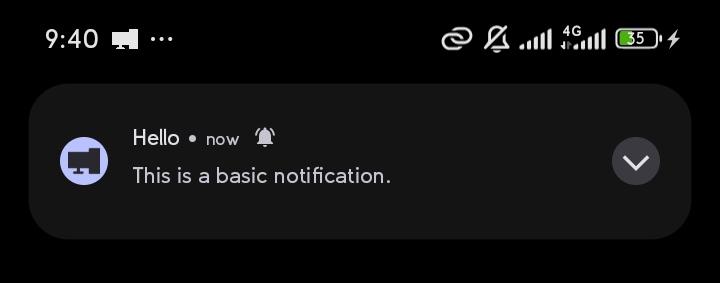
- Simple: Basic notification with title and message.
- Progress: Display progress updates.
- Big Text: Expandable notification for long text.
- Inbox: Multiple-line notifications.
- Big Picture: Notifications with images.
- Large Icon: Custom icons in notifications.
- Both Imgs - Combines big picture and large icon.
- Use
from android_notify import NotificationStylesto safely get style names.
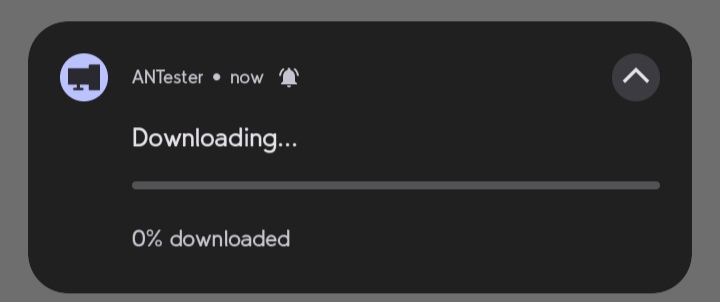
A Notification with moving progress-bar.
notification = Notification(
    title='Downloading...',
    message='0% complete',
    progress_max_value=100,
    progress_current_value=0
)
notification.send()
notification.updateProgressBar(50)
Sample Image:
A Notification that acts as a email having a title and main message, When dropdown button clicked then main message replaces title
notification = Notification(
    title="Article",
    message="Histroy of Loerm Ipsuim"
)
notification.setBigText("Lorem Ipsum is simply dummy text of the printing and ...")
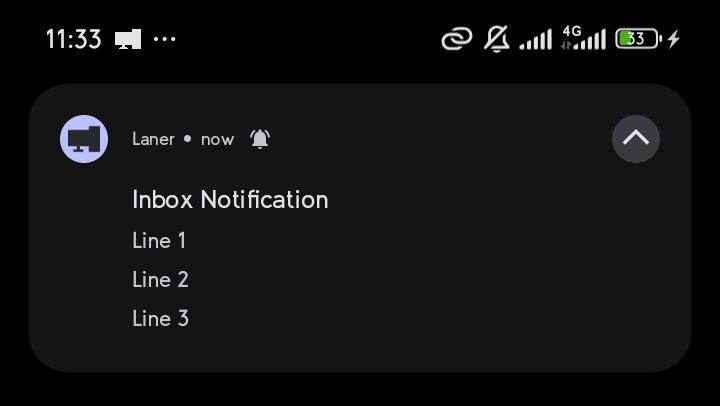
A Notification with multipule-lines, use the newline-escape to indicate \n
notification = Notification(
    title="5 New mails from Frank",
    message="Check them out"
)
notification.addLine("Re: Planning")
notification.addLine("Delivery on its way")
notification.addLine("Follow-up")
notification.send()
Sample Image:
- You can Use Local Or Online
- Online Images
- Make Sure you have permission to use INTERNET, In your
buildozer.specsetandroid.permissions = POST_NOTIFICATIONS, INTERNET - All Online Images should inputted with full URL (start with
https://orhttp://)
- Make Sure you have permission to use INTERNET, In your
- Local Images
- All local Images should be sub relative to your main.py (images should be in App's Folder)
A Notification with a large icon at the right side.
notification = Notification(
    title="FabianCodes",
    message="A twitter about some programming stuff"
)
notification.setLargeIcon("assets/imgs/profile.png")
notification.send()
Sample Image:
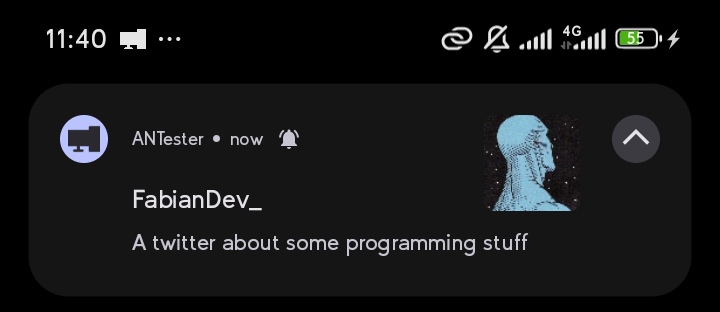
A Notification with a large icon at the right side.
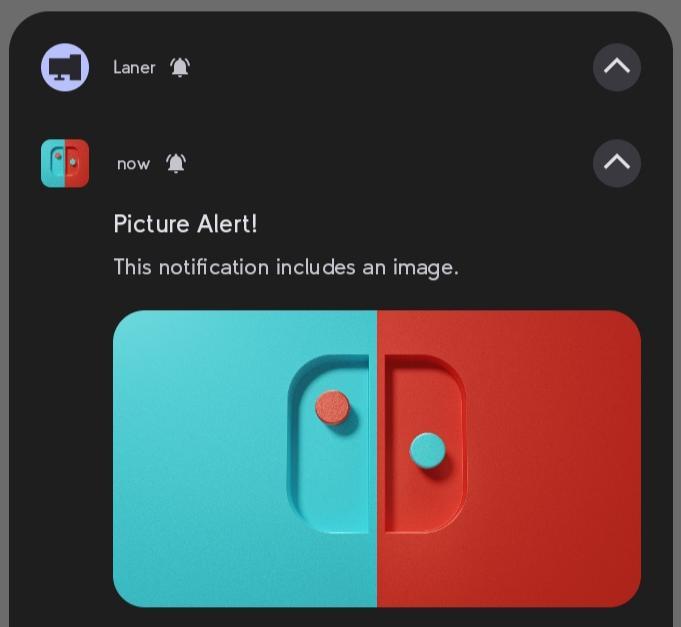
notification = Notification(
    title='Picture Alert!',
    message='This notification includes an image.'
)
notification.setBigPicture("assets/imgs/photo.png")
notification.send()
Sample Image:
A Notification with a large icon and big picture.
notification = Notification(
    title='MovieUpdates_007',
    message='Movie Update: SANDMAN just got renewed'
)
notification.setLargeIcon("assets/imgs/profile.png")
notification.setBigPicture("assets/imgs/photo.png")
notification.send()- Update Notifications: Dynamically change the title or message.
- Silent Notifications: Notifications without sound or alerts.
- Channel Management: Organize notifications into channels.
notification = Notification(title="Initial Title")
notification.send()

# Update title
notification.updateTitle("New Title")

# Update message
notification.updateMessage("New Message")notification = Notification(
title="Download..",
style="progress"
)
# Update progress
notification.updateProgressBar(30, "30% downloaded")
# Remove progress bar
notification.removeProgressBar("Download Complete")This won't show up before entering notification Tray.
notification = Notification(
    title='Background Update',
    silent=True
)
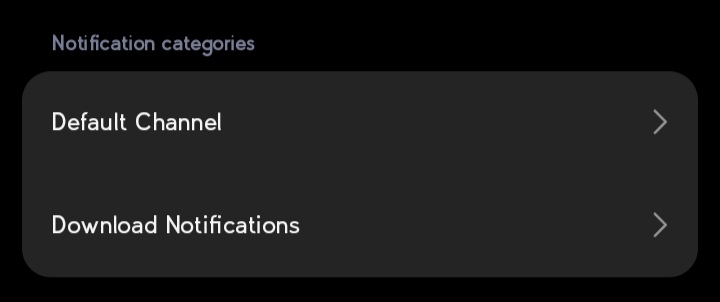
notification.send()Notifications are organized into channels, Custom Channel Name's Gives User ability to turn on/off. You can customize the channel name and ID:
- Try to constitent in Channel name strings, Don't input channel_id to avoid Human Error.
- Custom Channel Name's Gives User ability to turn on/off specific
Notification.createChannel(
    channel_id="downloads_notifications",
    channel_name="Download Notifications"  # Will create User-visible name "Download Notifications"
    description="For Receiving download info" # v1.59+
)
Notification(
    title="Download finished",
    message="How to Catch a Fish.mp4",
    channel_id="downloads_notifications"
)
Sample Image:
- Ensure
android.permissions = POST_NOTIFICATIONSpermission is declared. - Ensure
android.permissions = INTERNETpermission is declared, For Online Images in Notification. - Verify notification settings in the Android system UI.
- Missing image files will print all visible files.
- Invalid style names suggest alternatives.
- Invalid arguments display valid options.
- Use
from android_notify import NotificationStylesto get style names. - Use meaningful channel names.
- Test across multiple Android versions.
- Avoid frequent updates for progress notifications.
We welcome contributions! Follow these steps:
- Fork the repository.
- Create a new branch.
- Make your changes.
- Submit a pull request.
-
Q: How do I debug notifications?
-
A: Enable logs with
Notification.logs = True.
-
A: Enable logs with
- Enable logs for debugging.
- Verify paths to image files.
- Check Android notification settings.
For further assistance, feel free to open an issue on our GitHub Issues page.