Python based Dicord bot for ISIS Service TU Berlin
This project is targeted to the students of the TU Berlin and will allow students to access ISIS forum information and notifications via Discord, a VoIP, instant messaging and digital distribution platform designed for creating communities. Isi is written in the programming language python, which accesses the messages of the ISIS forum via the RSS feed and makes them available to the students.
The bot can be operated individually and as well a prototype for one ISIS module is provided via a Discord server for students to try and share. A hardware server running on a raspberry pi is deployed on which the Discord bot runs and continuously queries new information from the ISIS forum feeds. Due to privacy regulations of the TU Berlin, students will only be able to use the bot with their own ISIS security key, as an external aggregation of the notification from ISIS is not possible. The following chapters describe how to configure and use Isi.
Host the Bot yourself, here’s how:
- Clone the Github repository onto the machine you want to run the Bot on
- Click on the code button on the top-right and clone the files with the given command or simply download the .zip
- Move the folder to the path you want your Bot to run in
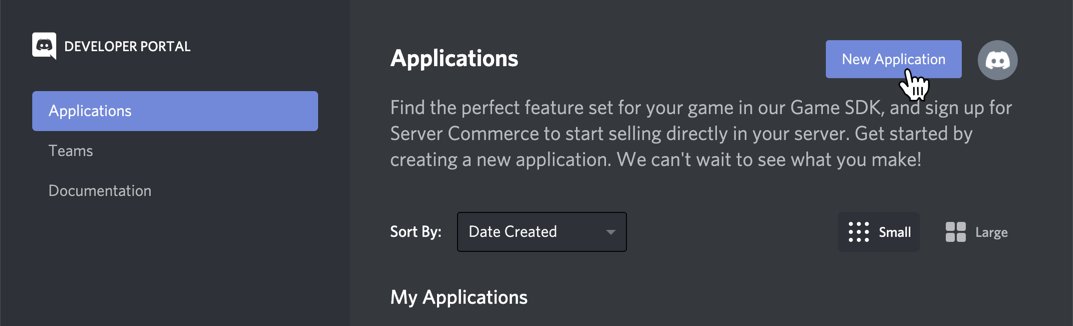
- Create your own discord Bot in the Discord developer portal
- Click on applications and create a new app
- In the Application settings, click on Bot and add a new one
- Feel free to customize the name and icon of your bot
- Invite the Bot to your server and copy your OAuth2 Token
- Click on applications and create a new app
- In the Application settings, click on OAuth2 tab and tick the "bot" scope under the URL generator
- Tick all the boxes with the rights you want your Bot to have (all Textpermissions are required), if you have administrative rights on the server you want to add the bot to, simply tick the the "administrator" box
- Finally copy the now generated invite link in the scopes section and paste it into your browser’s address bar to make it join a server
- Go back to the Bot tab and copy your token
- Insert your token in the TOKEN string of the config.py file that’s in your cloned repository
- You can edit the file via your text editor of choice, simply paste the token in between the quotation marks in the first line
- Add personal security key from ISIS to config.py
- Go to your ISIS module you want to sync with the bot and press the RSS icon to open the rss idml file - In the Application settings, click on Bot and add a new one

- The feed .idml file opens with an url that looks like follows:
https://isis.tu-berlin.de/rss/file.php/course_id/**personal_key**/mod_forum/forum_id/rss.xml - Copy your personal key which is the long number and character string from the URL
and paste them to the field "key" inconfig.py - Copy your personal key which is the long number and character string from the URL
and paste them to the field "key" in
config.py - Alternatively log into ISIS and click on your name in the upper right corner, then go to "Einstellungen" →"Sicherheitsschlüssel" and copy your security key from here and paste it as described above
- Add your ISIS modules as described in the commands
- Go to your ISIS module you want to sync with the bot and press the RSS icon to open the rss idml file - In the Application settings, click on Bot and add a new one
- Run the bot.py file usings Python 3.5 or higher
- If you haven’t already, install Python for your operating system of choice
- Run the bot via your method of choice depending on your operating system, you should get a little confirmation that the Bot is running
- You can now start using the commands in the specified channel of your server
Host your bot remotely on a Raspberry Pi or other linux machine:
- Setup your Pi with a linux distro of your choice and connect it to the internet
- Required dependencies: Python 3.5 or higher,
discord.py, feedparser - If not already in your distro included you will need git to clone the repository
- Required dependencies: Python 3.5 or higher,
- Follow the steps of Method 2 above
We made a prototype that queries the RSS feed of an ISIS module which was created specifically for testing purposes. You can add this prototype to your discord server and try the bot out. Follow this link, choose the server you want the bot to join and confirm the permissions.
The following table lists all the commands that you can currently run on Isi. The commands are triggered using a "!" followed by the command you want to run (e.g. !help). Sometimes a command can react to different words that also fit it’s function (aliases e.g. !help or !helpme) but is is recommended to use the main commands listed below.
After starting the bot, adding your courses is as easy as:
!new_feed <Course ID> <Forum ID>
To find the IDs for each of your courses, look for the courses forums and you will
find the RSS-Icon at the top of the forum’s page or right behind the newest forum
entries. You will find the information at these highlighted locations in the URL of the RSS Feed:
https://isis.tu-berlin.de/rss/file.php/**course_id**/personal_key/mod_forum/**forum_id**/rss.xml
Note, that not all forums have unlocked their RSS feed so you might need to contact the organizers of the module to set them up for you and the rest of the course.
Isi also has an integrated filtering function that you can use to only receive the news you want to see. There is a blacklist and a keywordlist. If a new post in the forum contains words from your blacklist, Isi won’t show that post to you. If it contains words that are saved in your keyword list, it will highlight them so they stick out in your chat (e.g. put the word "Klausur" in your keyword list and you should get most of the information concerning the upcoming exams highlighted). Appending or removing words to/from these lists is done by using the commands shown in the table, followed by the word you want to filter. After doing so, Isi will give you an overview of all the words that are in your list by sending it to you in a private message.
| Command | Function | Code Location |
|---|---|---|
!start |
starts the bot on the channel you use it on, displays a data security question which you have to answer to by using the emoji reactions. |
bot.py |
| If you agree to the data security guidelines by reacting with the green checkmark, the bot Isi will create filter lists as explained above and start listening to your ISIS feeds. If Isi detects a new entry, it will display said entry in your discord channel. | ||
| ------------- | --------------------------------------------------------------- | ------------- |
!new_feed |
adds a new feed that the bot will listen to. (e.g. !new_feed ) | ShowForum.py |
| ------------- | --------------------------------------------------------------- | ------------- |
!remove_feed |
removes feed, called just like the !new_feed command | ShowForum.py |
| ------------- | --------------------------------------------------------------- | ------------- |
!help |
lists all commands on discord with a short explanation about their usage | CommandHelp.py |
| Command | Function | Code Location |
|---|---|---|
!add_b / |
adds or removes given entry to/from blacklist | filtering.py |
!remove_b |
||
| ------------- | --------------------------------------------------------------- | ------------- |
!add_k / |
adds or removes given entry to/from keywordlist | filtering.py |
!remove_k |
||
| ------------- | --------------------------------------------------------------- | ------------- |
!show |
sends the current state of all of your filter lists to your personal chat | ShowForum.py |
| ------------- | --------------------------------------------------------------- | ------------- |
| Command | Function | Code Location |
|---|---|---|
set_interval_to |
followed by a number and a unit (h, min, sec), you can adjust the frequency the bot checks for new forum entries (e.g. !set_interval_to 30 min). | ShowForum.py.py |
| If you set the inter- val to high, you might not get all new notifications because Isi is limited to only receive the latest 10 notifications. | ||
| ------------- | ---------------------------------------------------------------- | ------------- |
!shutdown |
shuts down the bot * | bot.py |
| ------------- | ---------------------------------------------------------------- | ------------- |
* Note, that if you are not running the bot on a Linux machine, the !shutdown command will might throw an error due to a conflict which is caused by windows, python and possible other software. If you want to know more about this, check out this link.
This application was created for research purpose and is not officially utilized by the TU Berlin. Personal data, such as full names that are published in ISIS forums will be obtained and processed from ISIS in Discord. Users are obliged to use the bot only on Discord servers subscribed by fellow students that are related to the ISIS module you configure it for. Please do not use this bot on Discord servers where you can not guarantee that the personal data of your fellow students is safe from misuse. For more information about TU Berlin data security have a look at https://www.tu-berlin.de/allgemeine-seiten/datenschutz/.