Looking for the home of MHCP Creator Made docs? Head to - https://mhcpcreators.github.io/worlds-documentation/
This document outlines the standard procedure for adding or updating documentation for this project. It involves forking the main repository, making changes in your fork, and then submitting a Pull Request to the main repository, all using the GitHub web interface.
When contributing documentation, please ensure your additions or edits fit into one of the existing high-level documentation folders/categories. If you are unsure where your contribution belongs, please discuss it with the project maintainers.
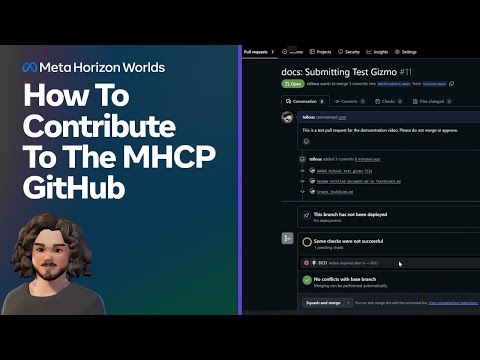
For a video tutorial on contributing to the repo:
- A GitHub account.
- Familiarity with Markdown syntax.
- A basic understanding of what forking a repository means.
The process of contributing documentation is broken down into two main phases:
- Initial Setup: A one-time (or infrequent) process to prepare your environment by forking the repository.
- Contribution Workflow: The set of steps you'll follow each time you want to add or update documentation.
This section covers the steps you need to take once to set up your own copy (fork) of the main documentation repository.
https://github.com/MHCPCreators/worlds-documentation
Forking creates your own copy of the project repository where you can make changes without affecting the original project.
-
Navigate to the main page of the original (upstream) repository on GitHub (this is the project you want to contribute to).
-
In the top-right corner of the page, click the "Fork" button.

-
If prompted (e.g., if you belong to multiple organizations), select your GitHub account as the destination for the fork.
-
You will be redirected to your newly created fork (e.g.,
https://github.com/your-username/repository-name). This is now your personal copy.

Once you have your fork set up, follow these steps for each new piece of documentation or update you wish to contribute.
On your main branch, add or edit documentation files. Crucially, place your files in the correct category folder as detailed in the table below. If you're unsure about the correct category, please consult with project maintainers before proceeding.
Documentation Categories:
| Category Folder Name (Example) | Description |
|---|---|
understanding-the-desktop-editor |
Covers installation, UI, world creation basics, debugging, and project settings. |
creating-a-world |
Focuses on preparation, tools, testing, and beginner tutorials for first-time world creation. |
generative-ai-tools |
Details on AI-powered tools for code, audio, texture, visual, and mesh generation. |
getting-started-with-scripting |
Introduces TypeScript scripting, setup, basic tutorials, and script management. |
scripting-concepts-persistence-apis |
Dives into advanced scripting, APIs, asset loading, and persistent data. |
meshes-materials-import |
Covers 3D model creation, material application, and custom model importing. |
lighting-colliders-audio |
Details lighting techniques, collider setup for interaction, and audio integration. |
gizmos |
Explores various gizmos for interaction, audio, and advanced world mechanics. |
asset-library-import |
Focuses on using the asset library, templates, and managing assets. |
-
Verify you are in your forked repository and on the branch created for these specific changes.
-
To add a new file:
- Using the table above, identify the appropriate category folder for your new file (e.g.,
docs/understanding-the-desktop-editor/). - Navigate to this folder. If it doesn't exist, GitHub allows you to create it when naming the file: simply type the desired folder path followed by your filename (e.g.,
docs/new-category/your-file.mdwill create thenew-categoryfolder if it's not present). - Click the "Add file" button and select either "Create new file" or "Upload files".

- If creating a new file:
- Enter the name for your file in the name field (e.g.,
new-guide.md). - Write or paste your Markdown content into the editor.

- Enter the name for your file in the name field (e.g.,
- If uploading files:
- Drag and drop your file(s) or use the file chooser to select them.
- Using the table above, identify the appropriate category folder for your new file (e.g.,
-
To edit an existing file:
- Navigate to the file you want to edit within your fork.
- Click the pencil icon (which usually says "Edit this file") on the right side of the file view.
- Make your desired changes in the editor.


How to get the YouTube embed code:
- Go to the video
- Click Share

- Click Embed

- Copy and paste the Embed Video code to the File Editor in GitHub


Note: No preview will be available because iframe is not supported in markdown. Please use the GitHub
Save your work by committing the changes to your branch in your fork.
- After creating, uploading, or editing a file in your fork, press the "Commit changes" button.

- Commit message: Write a clear and concise commit message.
- The first line should be a short summary (max 50-72 characters is a good guideline), e.g.,
docs: Add guide for Feature X. - If more detail is needed, leave a blank line after the summary and then provide a more detailed explanation in the larger text box.
- Good commit message practice: Start with a prefix indicating the type of change (e.g.,
docs:,fix:), followed by a concise description.
- The first line should be a short summary (max 50-72 characters is a good guideline), e.g.,
- Ensure the option "Commit directly to the
mainbranch" is selected. This refers to the branch in your fork. - Click the green "Commit changes" button.

A Pull Request (PR) is how you propose your changes to the original project.
-
After committing your changes to your branch in your fork, navigate to the main page of your forked repository on GitHub.
-
You should see a prominent notification bar for your recently pushed branch, often with a "Contribute" button. Click this button.

-
If you don't see this prompt:
- Go to the "Pull requests" tab of your forked repository and click "New pull request".

- Alternatively, go to the "Pull requests" tab of the original (upstream) repository and click "New pull request". You may then need to click "compare across forks".
- Go to the "Pull requests" tab of your forked repository and click "New pull request".
-
You will be taken to the "Open a pull request" page. Carefully review the branches:

- Base repository: This should be the original (upstream) repository you forked from (e.g.,
original-owner/repository-name). - Base branch: This is the branch in the original repository you want your changes merged into (commonly
mainormaster). - Head repository: This should be your fork (e.g.,
your-username/repository-name). - Compare branch (or Head branch): This should be the branch in your fork that contains your changes (e.g.,
<your-branch-name>). - GitHub usually selects these correctly if you used the "Contribute" button from your fork. If not, use the dropdown menus to select the correct repositories and branches.
- Base repository: This should be the original (upstream) repository you forked from (e.g.,
-
Title: Write a clear and descriptive title for your PR. The main commit message is often a good starting point.
- Example:
docs: Video Gizmo Documentation
- Example:
-
Description: In the text area, provide a summary of your changes.
- Explain the purpose of the documentation being added or updated.
- If fixing a reported issue, link to any relevant issues in the original repository (e.g., "Closes original-owner/repository-name#123" to automatically close issue #123 when the PR is merged).
- Clearly state that you've added or updated documentation.
-
Click "Create pull request". This submits your changes for review to the maintainers of the original repository.


After submitting your PR, project maintainers will review your contribution.
- Maintainers of the original repository will review your changes. They may ask questions, request modifications, or suggest improvements directly on the PR page using comments and review tools.
- Monitor your PR for feedback. You will typically receive notifications from GitHub.
- If changes are requested, address the feedback by making further edits and commits to your branch in your forked repository. New commits pushed to that branch in your fork will automatically update the existing Pull Request.
Once your PR is approved and any automated checks pass, a maintainer will merge it.
- After any necessary discussions and revisions, if the maintainers are satisfied, they will merge your PR into the
main(or target) branch of the original repository. - Your documentation changes are now part of the project!
Keeping your fork's main branch in sync with the upstream repository is also good practice for future contributions. Occasionally, press the "Sync Fork" button on your forked repository's main page to retrieve any updates to the original (upstream) repository.

Q: Do I upload my documentation as its own repository, or does it go into a topic-specific repository?
A: All documentation contributions should be made to the main project repository by following the forking workflow outlined in this SOP. You do not need to create a separate repository for your documentation. Your changes will be integrated into the existing documentation structure within the main repository.
Q: How should my documentation be tagged or categorized?
A: Your documentation should be placed into the appropriate category folder within the docs/ directory of the main repository. Please refer to the table in Section 2.2.2. Add or Edit Documentation Files for a list of predefined categories and their corresponding folder names (e.g., docs/understanding-the-desktop-editor/, docs/creating-a-world/). If you are unsure which category your contribution fits into, please consult with the project maintainers.
Q: Do videos all go into a video repository, or are they part of some other structure?
A: Videos themselves are typically hosted on platforms like YouTube. Within the documentation, you should link to these videos (either as a standard hyperlink or an embedded thumbnail link, as described in Section 2.2.3) directly within the relevant Markdown (.md) files. These Markdown files are organized into the category folders mentioned above. There is no separate video repository; links to videos become part of the documentation content within the existing structure.
By following these steps, you can contribute effectively to the project's documentation. Thank you for helping keep our documentation up-to-date and informative!