your friendly, encouraging and brainrotted coding companion
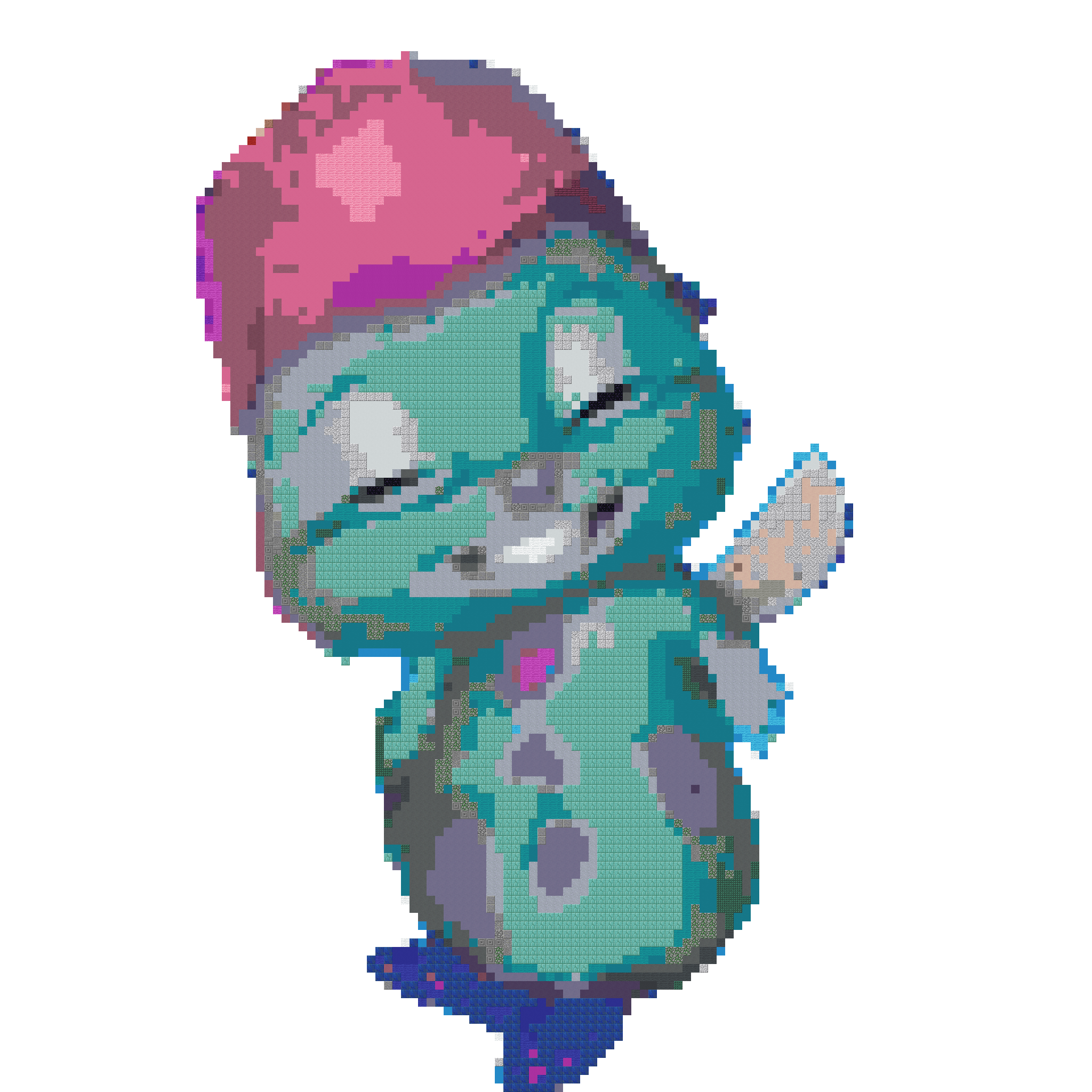
Inspired by vscode-pets, we wanted a VSCode pet that was #relatable, like Bibble. At the same time, we wanted a coding companion that was encouraging, entertaining and engaging, which led us to develop brainrot buddy.
- brainrot buddy is a VSCode extension that loads a pet (Bibble). Bibble reacts according to the user's workspace state, such as:
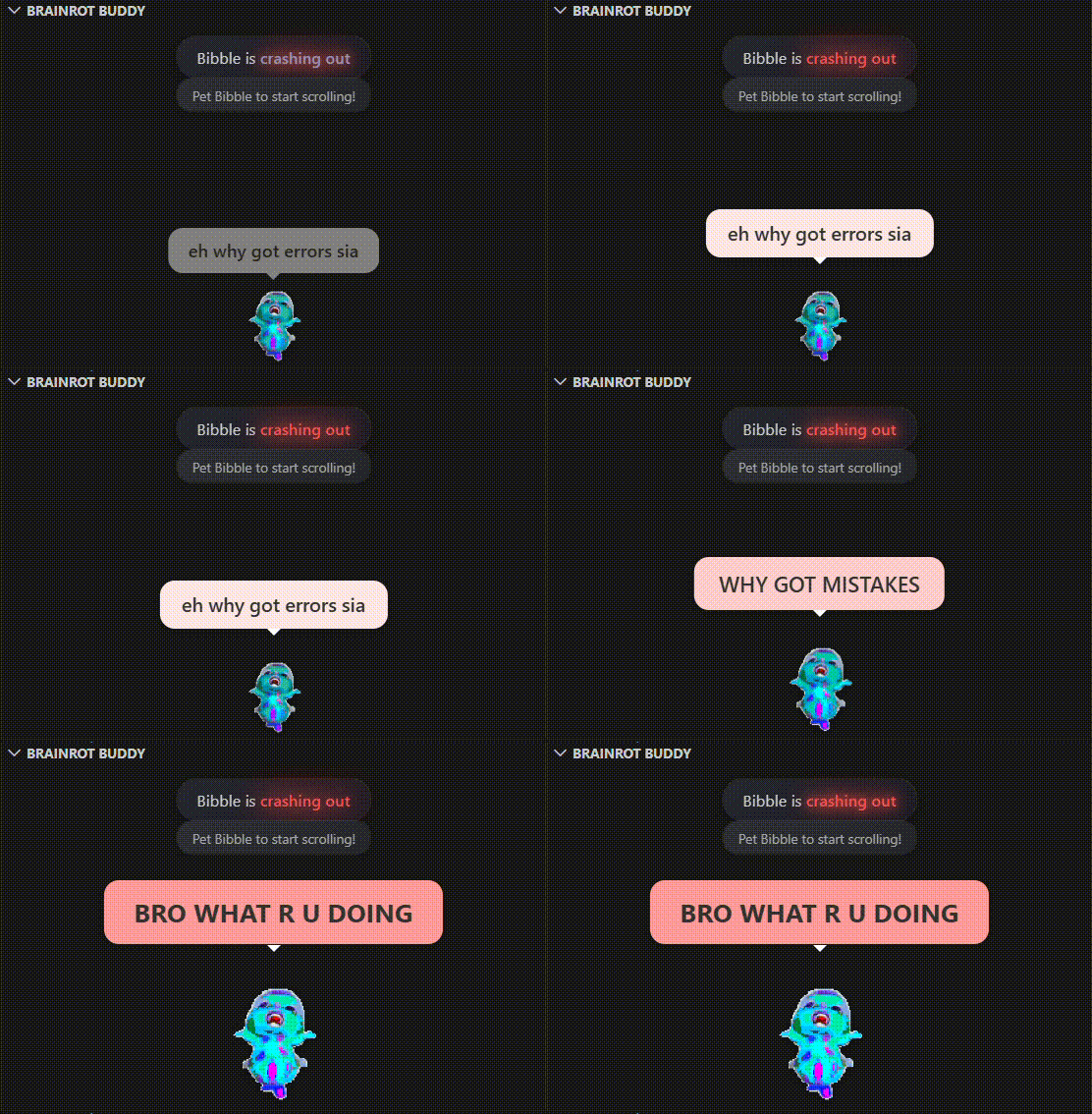
- Errors
- Successful commits
- Bad coding practices
- Regular scheduled programming
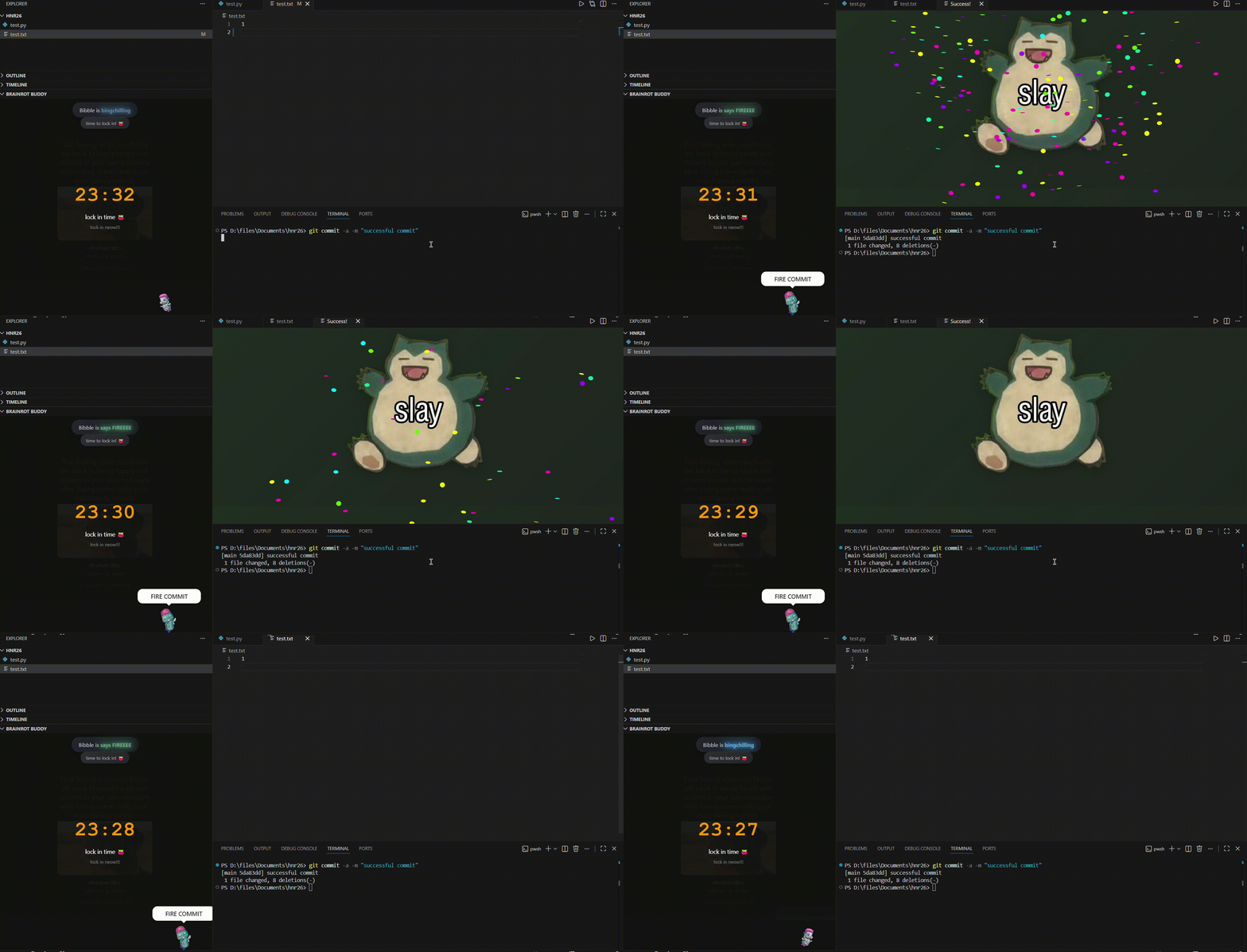
- An encouraging animation is also generated upon successful commits.
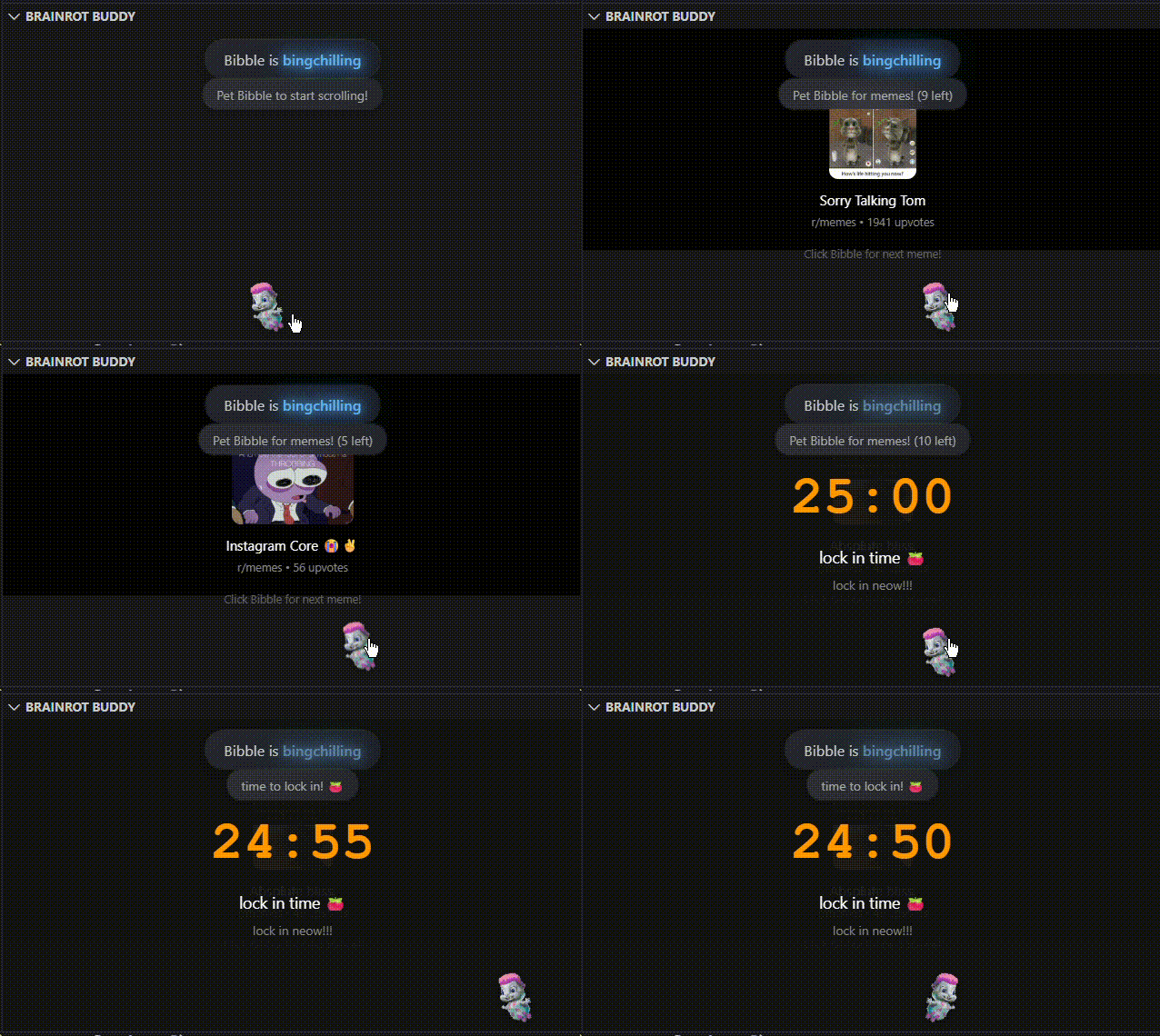
- A Pomodoro Brainrot Doomscroll panel, which allows the user to doomscroll during Pomodoro breaks, reducing the need to navigate to other devices/tabs. For peak efficiency (bumness).
- VSCode Extension API
- Handles activation, commands, events, diagnostics, and Git hooks
- Enables integration directly into the editor workflow
- Node.js
- Powers the extension backend and API interactions
- TypeScript
- Primary development language
- Improves reliability when handling editor events with type specification
- With no prior experience with building VSCode extensions and its API, we spent a fair bit of time scouring the documentation for an API that suited our needs
- eepys
- Our first VSCode extension: It's fun, entertaining, and doesn't break
- Staying up till 4am: No easy feat, pulled through sheer willpower and caffeine
We learnt how to create a VSCode extension, experimenting with VSCode extension APIs, WebViews and WebPanels. Most importantly, we learnt how to bring silly ideas to life.
- Integration with Instagram Reels and Tiktok, for the peak doomscroll experience
- An API to update success animations, because staying trendy is important
-
Ensure the latest version of Node.js is installed on your machine.
-
Install Yeoman and the VS Code Extension Generator globally using npm:
npm install --global yo generator-code
-
Clone the repository
git clone https://www.github.com/elphabetsoop/brainrot-buddy
-
Open the project directory in VS Code
cd brainrot-buddy
code .
-
Install the dependencies
npm install
-
Press
F5to open a new VS Code window with the extension loaded. You should see a heart icon in the activity bar on the left. Drag it to your desired location.
-
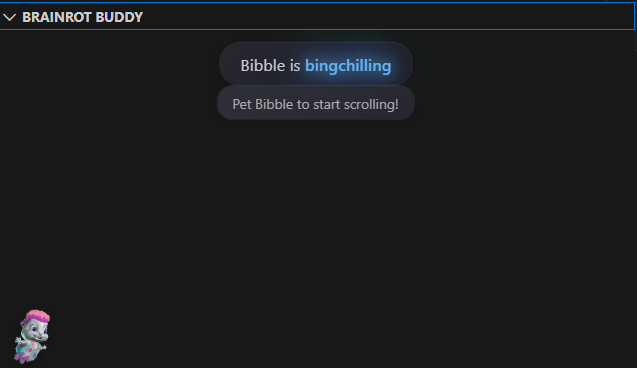
Bibble bingchillings with you (bro walks around)
-
Bibble can be rather savage :(
-
Bibble serving you dopamine hits but preventing excessive doomscrolling
-
Bibble celebrating your success with you!