
This addon for KOReader allows you to view your Zotero collections.
Note
Beta version! Please report bugs, pull requests are welcome.
- Synchronization via Zotero Web API
- Open attached PDF/EPUB/HTML files
- Sync annotations from Zotero to KOReader and the other way around (See limitations section)
- Automatically download items of selected collections at sync time
- Supports WebDAV storage backend
- Search entries by the title of the publication or name of the first author.
- The plugin will sync annotations both ways. It supports deletions but changes (i.e., enlarging or modifying an annotation) are not yet supported
- Syncing of annotations requires opening the file from Zotero browse, opening it from recents will not sync annotations. Additionally, the file must be closed in KOReader before syncing for annotations to be sent to the server at sync time
- Annotations only work for pdf files, not epub or other formats
- Search function currently quite limited, no real access to full author lists, DOIs, tags, etc.
- Ensure you are running the latest version of KOReader
- Copy the files in this repository to
<KOReader>/plugins/zotero.koplugin - Obtain an API token for your account by generating a new key in your Zotero Settings. Note the userID and the private key.
- If applicable, obtain username and password for your WebDAV storage (see below).
- Set your credentials for Zotero either directly in KOReader or edit the configuration file as described below.
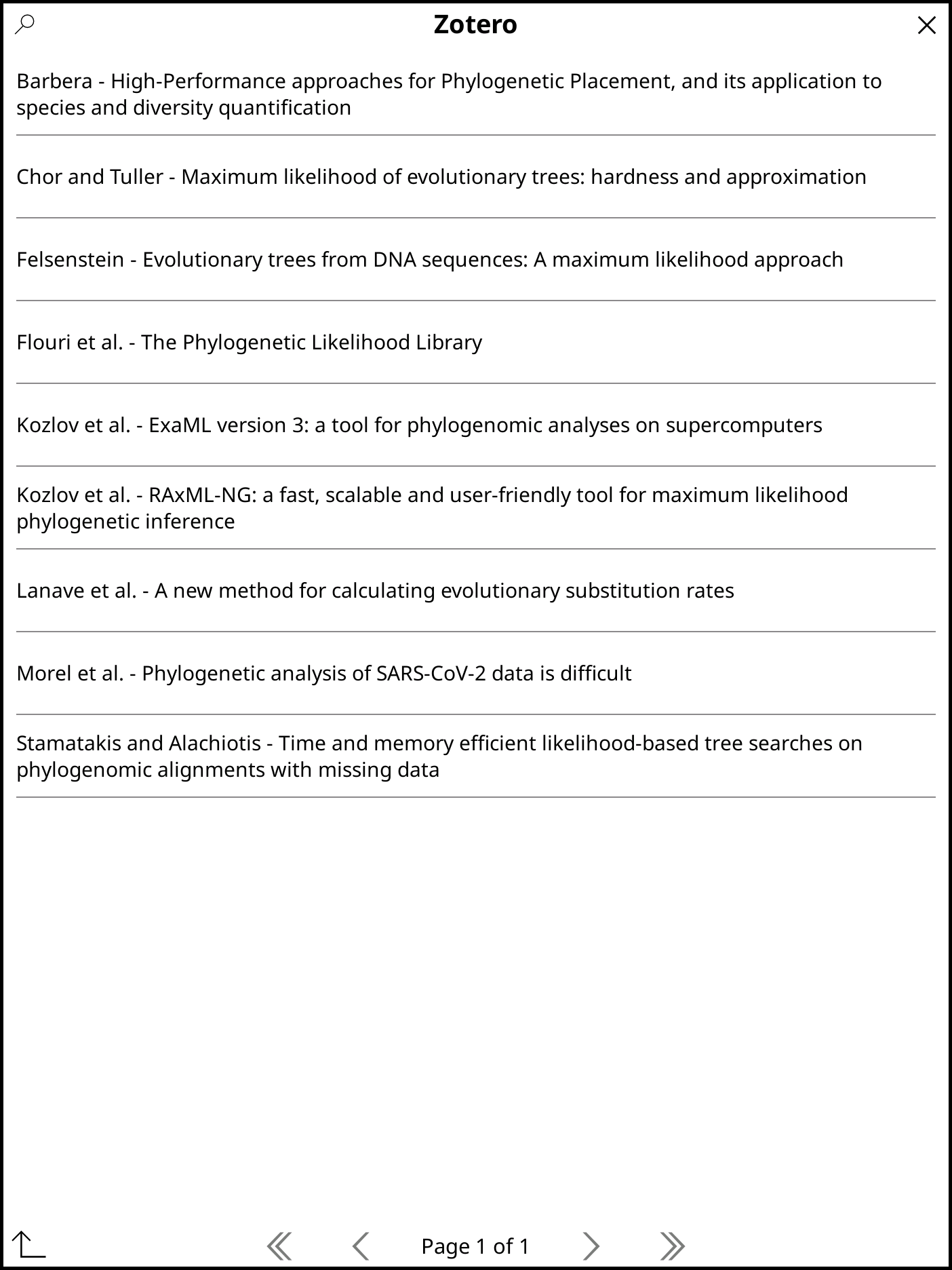
This plugin adds a 'Zotero' item to the search menu ('Top Menu -> Search (magnifying glass) -> Zotero'). It keeps most of your Zotero library information on your device and apart from "Synchronize" tries to avoid interacting with the Zotero server. The only exception is when trying to open an attachment which is not yet available locally: in this case it will automatically try to download the item.
Use this to navigate your Zotero collection. Note that only items that have at least one supported attachment will be shown in the browser. Collections will be shown first, followed by items in the selected sub-collection (currently in alphabetical order). Items without a collection will be shown in the top level.
Tapping will open a sub-collection or try to open one of the attachments associated with the item. If it is not yet available locally (or out of date) it will download it from the zotero server. When opening an item from the Zotero Browser it will also check its Zotero annotations (according to the local database) and attach supported annotations to the item.
You can also long-press on items. The action depends on what type of item is selected:
- Collection: Show a dialog which allows you to set this collection as an offline collection.
- Item: Show a list of all (supported) attachments of this item
You can search the databse by clicking on the magnifying glass icon in the top left corner.
Note: you can associate this 'Browse' action with a gesture by going to 'Top Menu -> Settings (cogwheel) -> Taps and gestures -> Gesture manager' Select the gesture you want to use, then navigate to 'General -> Zotero Collection Browser'
The initial synchronization will download the complete metadata for your collection from the Zotero server. Depending on the size of your collection this can take quite some time (e.g. for my library about 1 minute per 1000 items). All subsequent sync's should be much faster, as it will only download changes since the last sync.
In detail 'synchronize' entails
- Uploading new annotations to the Zotero server
- Downloading collection information
- Downloading library items and cataloguing them
- Downloading all attachments in collections marked as 'offline collections'
-
Re-analyze local items will go through all the items in the local database and re-check which ones have supported attachments, are attachments themselves or are relevant annotations. Depending on your collection size this can take quite some time, but is still much faster then a full re-sync and does not need any internet connection.
-
Resync entire collection: only meant as a last resort as this will delete the complete local database and resynchronize everything from the Zotero server.
-
Configure Zotero account: This needs to be configured before you can synchronise your Zotero library. Enter UserID (8 digit number) and the API key here.
-
Webdav settings: If you are using webdav use the 3 corresponding menu items to set the credentials, test them and enable support.
Displays version info for this plugin and some basic stats about your local zotero library.
If you do not want to pay Zotero for more storage, you can also store the attachments in a WebDAV folder like Nextcloud. You can read more about how to set up WebDAV in the Zotero manual.
The WebDAV URL should point to a directory named zotero. If you use Nextcloud, it will look similar to this: http://your-instance.tld/remote.php/dav/files/your-username/zotero. It is probably a good idea to use an app password instead of your user password, so that you can easily revoke it in the security settings should you ever lose your device.
If you do not want to type in the account credentials on your E-Reader, you can also edit the settings file directly.
Edit the zotero/meta.lua file inside the koreader directory and supply needed values:
return {
    ["api_key"] = "",           -- Zotero API secret key
    ["user_id"] = "",           -- API user ID, should be an integer number
    ["webdav_enabled"] = false, -- set to true if you use WebDAV to store attachments
    ["webdav_url"] = "",        -- URL to WebDAV zotero directory
    ["webdav_user"] = "",
    ["webdav_password"] = "",
}In it's default configuration KOReader seems to open a dialog asking whether to write annotations into the pdf file. Do not write annotation to the file. The plugin automatically disables this dialog for files opened rom the Zotero Browser. This setting can be modified in the Zotero plugin settings.
Alternatively, you can disable this for all files by going to 'Top Menu -> Settings (cogwheel) -> Document -> Save document (write highlights into PDF)' and ticking 'Disable'