
This is a Lovelace card for Home Assistant that can be used to control your Alarmo security system.
The card works on top of the alarmo custom component. You will need it this as well.
This card is only suitable for controlling entities (of type alarm_control_panel) which are generated by the Alarmo integration, you cannot use it with any other alarm integration in HA.
Preview:
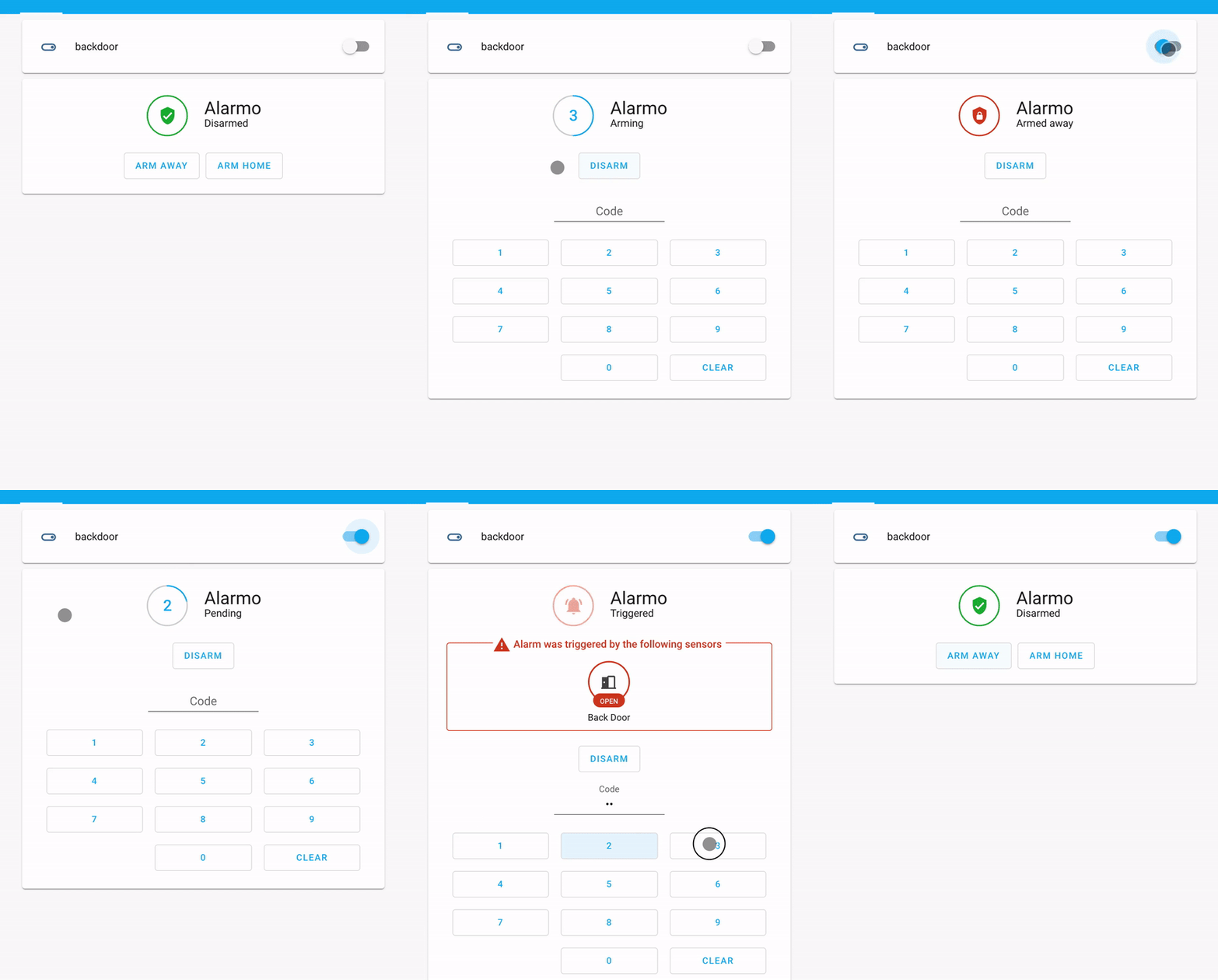
The alarmo-card is similar to the Lovelace alarm panel card, but brings some extra functions.
A countdown timer is displayed when the alarm is in arming or pending state. The countdown timer will show the remaining time of the configured exit / entry delay. This gives you an indication of how much time you have left for leaving the house / disarming the alarm.
The card will give you an indication in the following conditions:
- A wrong code (or no code) was entered.
- The alarm could not be armed (due to one or more sensors).
- The alarm was triggered (due to one or more sensors).
In the second and third case you will see a message in the card with the sensors that caused the issue. The state of these sensors is visible in the message, such that you have feedback in case the issue is resolved.
When the alarm is disabled, an icon is shown in the top-right corner of the card. By clicking it a menu is revealed with the advanced arming options:
- Skip delay: setting this option will cause the exit delay to be skipped, so arming the alarm will be effective immediately. This is practical in case you want to arm the alarm after you already left the house.
- Bypass open sensors: this option forces the alarm to be armed. In case sensors are blocking the arming, they will be automatically bypassed (temporarily eliminated from the alarm).
The arming options are only applied on the next time you arm the alarm.
The card allows the following customization options:
- Increasing the size of the buttons in the card.
- Choose which buttons for arming modes are visible.
- Change the texts visible on the arming mode buttons and the text visible when the alarm is in this state.
- Change the title of the alarm.
click to show installation instructions
HACS installation:
Note: Ensure you have a www folder created as in config/www or the installation will succeed but fails silently
- Click the Orange + button bottom right and search for Alarmo Card
- Click on "Install" under the new card that just popped up.
Note: Ensure to install https://github.com/nielsfaber/alarmo and add the integration in order for the card to work properly.
Manual installation
-
Download the latest release of
alarmo-card.jshere and place it intowww/alarmo-card. -
Use the GUI; Configuration -> Lovelace Dashboards -> Resources Tab to add
/local/alarmo-card/alarmo-card.js?v=0, or add a reference to the card in the resources section ofconfiguration.yaml:
resources:
  - url: /local/alarmo-card/alarmo-card.js?v=0
type: moduleclick to show updating instructions
Updating via HACS: HACS should auto-remind you in the HACS tab when an update is available.
Updating manually:
Use git pull for manual installation updates.
Since most browsers will cache the Lovelace card code, you can force a refresh of the browser by editing the entry in the resources: section in ui-lovelace.yaml, by updating the version to ?v=(n+1) (where n the current value).
For setting up the card, you need to assign the correct entity to the card. All settings regarding delay times, arming modes, code settings are automatically detected.
Example YAML configuration:
type: 'custom:alarmo-card'
entity: alarm_control_panel.alarmo
Configuration using UI mode:
- Go to the Lovelace page where you want to add the card
- Click "Edit Dashboard" on the right (under the button with the 3 dots)
- Click the "Add card" button on the bottom
- Choose "Custom: Alarmo Card" and pick the correct entity.
| Name | Type | Requirement | Description | Default |
|---|---|---|---|---|
type |
string | Required | custom:alarmo-card |
|
entity |
string | Required | Alarm_control_panel entity | |
name |
string | Optional | Displayed name (next to icon) | (Take from entity) |
keep_keypad_visible |
boolean | Optional | Keep the keypad always visible, also when no code input is required. Only useful if numerical code is used. |
false |
button_scale_actions |
number | Optional | Scaling factor to apply to the size of the action buttons (between 1.0 and 2.5) | 1.0 |
button_scale_keypad |
number | Optional | Scaling factor to apply to the size of the keypad buttons (between 1.0 and 2.5) | 1.0 |
hide_keypad |
boolean | Optional | Hide the keypad buttons for entering the code from the card. | false |
use_code_dialog |
boolean | Optional | Display the keypad for entering the code as a popup dialog. This option cannot be combined with the settings hide_keypad, keep_keypad_visible and button_scale_keypad. |
false |
show_messages |
boolean | Optional | Show diagnostic messages in the card when alarm is triggered or cannot be armed. | true |
show_ready_indicator |
boolean | Optional | Adds ready/not ready indicators to the arm mode buttons. | true |
show_bypassed_sensors |
boolean | Optional | Show a warning message when the alarm is armed with bypassed sensors. | true |
states |
object | Optional | Customize the display of states in the card. See state configuration. |
State configuration allows users to modify the displayed texts and buttons (where applicable) in the card corresponding to certain states.
Note that the alarm entity may not support all armed_xxx states. States which are not supported will not show up in the card and cannot be configured.
| Name | Type | Applicable states | Description | Default |
|---|---|---|---|---|
hide |
boolean | armed_awayarmed_homearmed_nightarmed_vacationarmed_custom_bypassdisarmed |
Hides the button corresponding to the state. | false |
button_label |
string | disarmedarmed_awayarmed_homearmed_nightarmed_vacationarmed_custom_bypass |
Overwrites the text on the button. Only useful if the button is not hidden. |
(Use translation from HA) |
button_icon |
string | disarmedarmed_awayarmed_homearmed_nightarmed_vacationarmed_custom_bypass |
Overwrites the icon on the button. Only useful if the button is not hidden. |
(state dependent) |
state_label |
string | disarmedtriggeredarmingpendingarmed_awayarmed_homearmed_nightarmed_vacationarmed_custom_bypass |
Overwrites the text displayed in the card when the alarm is in this state. | (Use translation from HA) |
color |
string | disarmedtriggeredarmingpendingarmed_awayarmed_homearmed_nightarmed_vacationarmed_custom_bypass |
Overwrites the color used in the card for displaying the badge and action bar. | (Use defaults from HA) |
button_order |
number | disarmedarmed_awayarmed_homearmed_nightarmed_vacationarmed_custom_bypass |
Overwrites the order in which the buttons are displayed. Sorting is performed in ascending order. | 0 |
Example of using state configuration
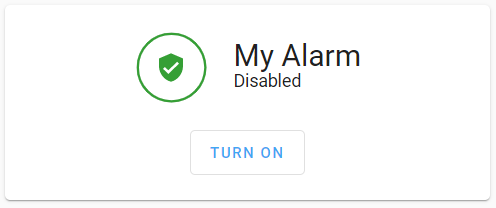
The example below hides the armed_home button (although the alarm supports it), and renames the armed_away / disarmed options.
type: custom:alarmo-card
entity: alarm_control_panel.alarmo
states:
  armed_away:
    hide: false
    button_label: "Turn on"
    state_label: "Enabled"
  armed_home:
    hide: true
  disarmed:
    hide: false
    button_label: "Turn off"
    state_label: "Disabled"
# ... rest of card config
Result:
If you want to make donation as appreciation of my work, you can do so via PayPal or buy me a coffee. Thank you!




