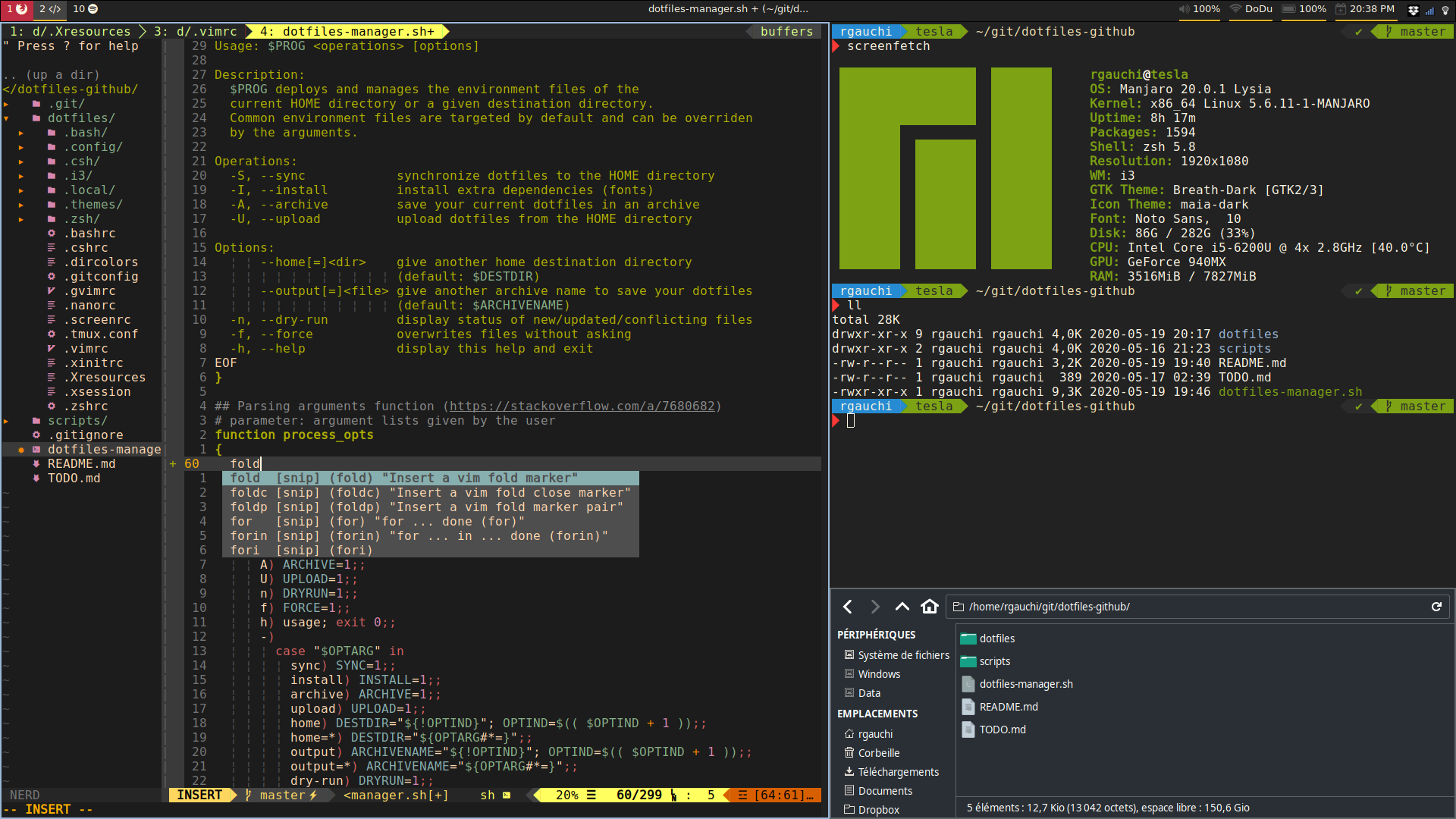
- Clone the dotfiles repertory anywhere you want
- Archive (
-A) your current configuration files - Synchronize (
-S) and install (-I) dependencies withdotfiles-manager.sh - Restart another shell, it will works!
git clone https://github.com/romangauchi/dotfiles.git
cd dotfiles
./dotfiles-manager.sh -ASI
The dotfiles-manager.sh installs the following dependencies on your system:
- Tmux Plugin Manager: support plugins on
Tmuxgithub. - Nerd Fonts: support glyph/icons from popular fonts as Font Awesome, Powerline, Devicons on github.
- Powerline Fonts: (not used) pre-patched fonts for usage with the Powerline statusline plugin on github.
The dotfiles-manager.sh deploys the environment on the current HOME directory or a given destination directory (--home <my-workspace>). The installation copies the content of the dotfiles directory and installs the required dependencies. Additional arguments can be used to preview modifications (-n,--dry-run) or to overwrite files without prompting (-f, --force).
Usage: dotfiles-manager.sh <operations> [options]

Operations:
  -S, --sync            synchronize dotfiles to the HOME directory
  -I, --install         install extra dependencies (fonts)
  -A, --archive         save your current dotfiles in an archive

Options:
      --home[=]<dir>    give another home destination directory
                        (default: <your-home-dir>)
      --output[=]<file> give another archive name to save your dotfiles
                        (default: <dotfiles-hostname-date>)
  -n, --dry-run         display status of new/updated/conflicting files
  -f, --force           overwrites files without asking
  -h, --help            display this help and exit
You can freely improve your environment by editing {zsh|bash|csh}rc.perso and {zsh|bash|csh}rc.first in order to add software or dependency and keeping updates of this project. Those files will never exist in this project, they will not be overwritten.
- Add new plugin to
~/.tmux.confwithset -g @plugin '...' - Press
prefix+ I (capital I, as in Install) to fetch the plugin
You're good to go! The plugin was cloned to ~/.tmux/plugins/ directory and sourced.
Download color configuration files from this github project, choose your theme and download it into your environment with this command.
wget -nv https://raw.githubusercontent.com/Mayccoll/Gogh/master/themes/solarized-dark.sh -P ~/.themes
Then you can edit your {zsh|bash|csh}rc.perso to define background, dark_theme and light_theme to use.
- Go to Profile Preferences > Title and Command > Check "Run a custom command instead of my shell"
- Enter in Custom command:
env TERM=xterm-256color /bin/tcsh
Note: you can directly change the Shell interpreter through this trick... (env TERM=xterm-256color /bin/bash)
- My vimrc is based on Junegunn Choi's configuration and Amir Salihefendic's configuration
Use this setup at your own risk, no guarantee is provided whatsoever