📢 Use this project, contribute to it or open issues to help evolve it using Store Discussion.
⚠️ This app is no longer maintained by VTEX. This means support and maintenance are no longer provided.
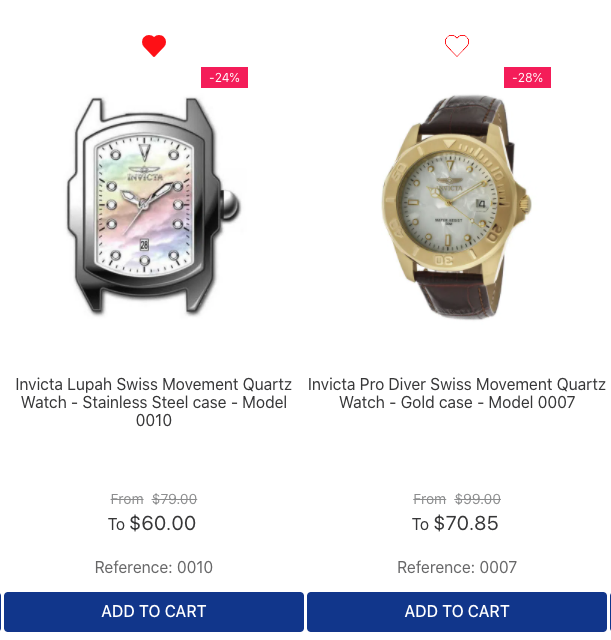
Designed for B2C stores, the Wishlist app adds a heart icon to digital shelves and product details pages, allowing users to add their desired products to a wishlist.
Example of heart icons on a shelf.
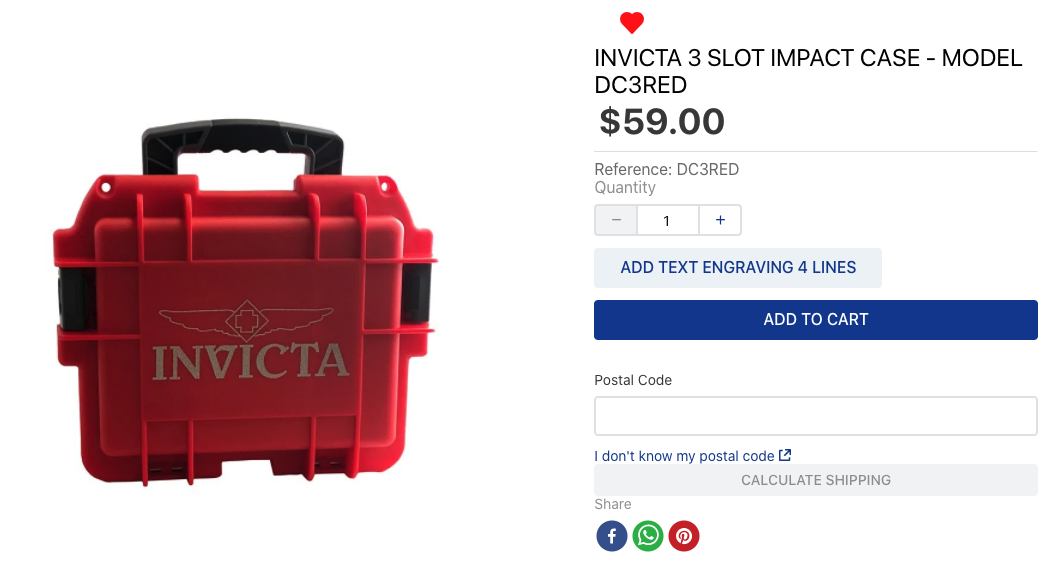
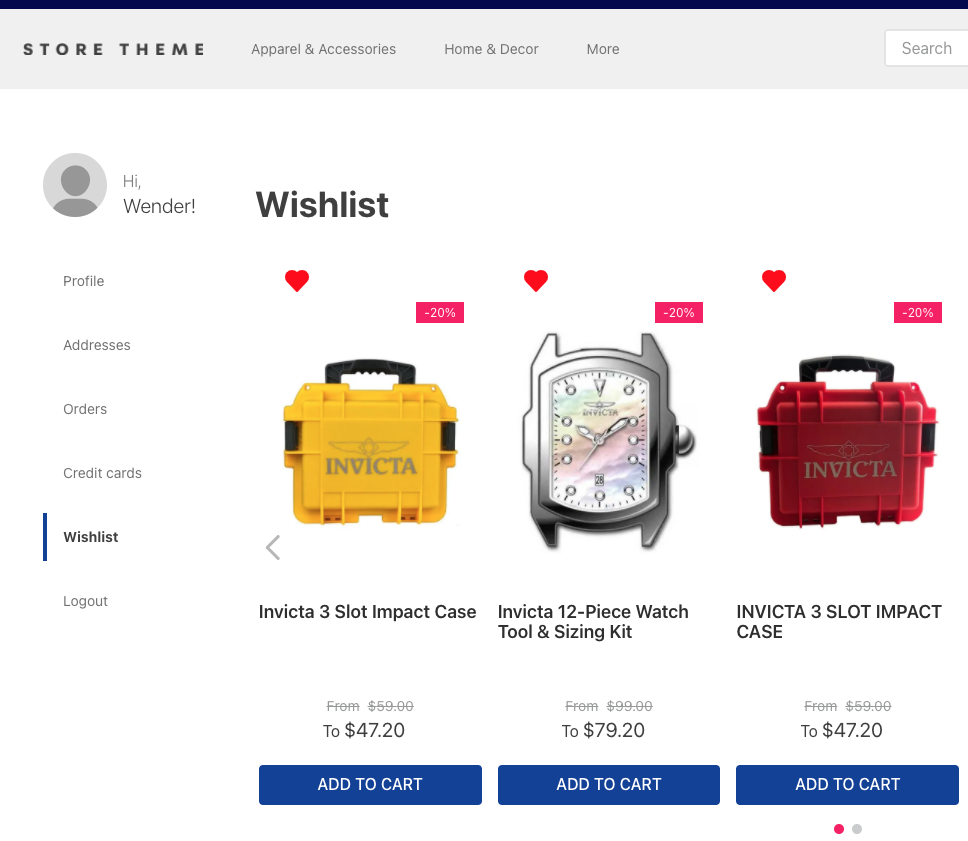
In addition, it generates a new route, /wishlist, under the My Account menu, creating a page that displays the items users added to the wishlist.
- Install the Wishlist app in the desired VTEX account by running
vtex install vtex.wish-listin your terminal. - Open your Store Theme app directory in the code editor.
- Add the Wishlist app to your theme's
manifest.jsonfile inside peerDependencies as shown below:
 "peerDependencies": {
+  "vtex.wish-list": "1.x"
 }
ℹ️ The Wishlist app can export two theme blocks when added as a dependency:
add-to-list-btnandlist-context.wishlist. These are responsible for adding the heart icon to other theme blocks and providing product data to build the/wishlist, which is also shared with the My Account page.
- Add the
add-to-list-btnblock in thestore.producttemplate's children block list. For example:
{
  "store.product": {
    "children": [
      "product-name",
      "product-reviews",
+      "add-to-list-btn"
    ]
},- Declare the
add-to-list-btnblock as a child of theproduct-summary.shelfblocks in your theme. For example:
  "product-summary.shelf": {
    "children": [
+     "add-to-list-btn",
      "product-summary-name",
      "product-rating-inline",
      "product-summary-price",
      "add-to-cart-button"
    ]
}- Define the layout of the wishlist page
To define the wishlist page layout, add the wishlist.jsonc to your /store/blocks folder.
The wishlist.jsonc is a configuration file that defines how the store.wishlist interface for the /wishlist route is composed. See the example below:
{
  "my-account-link.wishlist-link": {
    "props": {
      "label": "My Wishlist"
    }
  },
  "my-account-page.wishlist-page": {
    "props": {
      "title": "Wishlist"
    },
    "children": ["list-context.wishlist"]
  },
  "store.wishlist": {
    "blocks": ["flex-layout.row#top", "list-context.wishlist"]
  },
  "flex-layout.row#top": {
    "children": ["flex-layout.col#title"]
  },
  "flex-layout.col#title": {
    "children": ["rich-text#title"],
    "props": {
      "blockClass": "titleWishlist",
      "preventVerticalStretch": true
    }
  },
  "rich-text#title": {
    "props": {
      "text": "### Wishlist"
    }
  },
  "list-context.wishlist": {
    "blocks": ["product-summary.shelf#wishlist"],
    "children": ["slider-layout#wishlist"]
  },
  "product-summary.shelf#wishlist": {
    "children": [
      "add-to-list-btn",
      "product-summary-image",
      "product-summary-name",
      "product-summary-space",
      "product-summary-price",
      "add-to-cart-button"
    ]
  },
  "slider-layout#wishlist": {
    "props": {
      "itemsPerPage": {
        "desktop": 5,
        "tablet": 3,
        "phone": 1
      },
      "showNavigationArrows": "desktopOnly",
      "showPaginationDots": "always",
      "infinite": false,
      "fullWidth": true,
      "blockClass": "shelf"
    }
  }
}
ℹ️ You can use the example above in your project or customize it using other blocks.
- Display the wishlist in My Account
To display the wishlist in My Account, add the plugins.json file to your theme's /store folder as follows:
{
  "my-account-pages > my-account-page": "my-account-page.wishlist-page",
  "my-account-menu > my-account-link": "my-account-link.wishlist-link"
}- Deploy your changes by following the instructions in the guide [Deploying a new app version]https://developers.vtex.com/docs/guides/vtex-io-documentation-making-your-new-app-version-publicly-available).
If you want to configure the layout without the slider-layout dependency, you can use the list-context-renderer to wrap the product-summary.shelf. Learn more here.
| Prop name | Type | Description | Default value |
|---|---|---|---|
label |
string |
Changes the section menu label on the My Account page | Wishlist |
There are a couple of URLs to read, search, and change data for the app:
To read the schema of the Wishlist app:
curl --request GET \
     --url 'https://{{accountName}}.vtexcommercestable.com.br/api/dataentities/wishlist/schemas/wishlist' \
     --header 'VtexIdClientAutCookie: {authToken}' \
To GET all the wishlist data:
curl --request GET \
     --url 'https://{environment}--{accountName}.myvtex.com/_v/wishlist/export-lists' \
     --header 'VtexIdClientAutCookie: {authToken}' \
To search for a wishlist by user email:
curl --request GET \
     --url 'https://{{accountName}}.vtexcommercestable.com.br/api/dataentities/wishlist/search?' \
     --header 'VtexIdClientAutCookie: {authToken}' \
To PATCH a wishlist to Master Data:
curl --request PATCH \
     --url 'https://{{accountName}}.vtexcommercestable.com.br/api/dataentities/wishlist/documents' \
     --header 'VtexIdClientAutCookie: {authToken}' \
     --data '
        [
            "Email",
            "Name",
            .
            .
            .
            "IsPublic",
        ]
     '
To DELETE a wishlist from Master Data:
curl --request DELETE \
     --url 'https://{{accountName}}.vtexcommercestable.com.br/api/dataentities/wishlist/documents/{documentId}' \
     --header 'VtexIdClientAutCookie: {authToken}' \
To change the link of the toast message:
{
  "add-to-list-btn#myButton": {
    "props": {
      "toastURL": "/wishlist"
    }
  }
}| Prop name | Type | Description | Default value |
|---|---|---|---|
toastURL |
string |
Changes the link of the toast message | /account/#wishlist' |
To show a custom view if no product has been added to the wishlist:
{
  "list-context.wishlist": {
+    "blocks": ["wishlist-empty-list", "product-summary.shelf#wishlist"],
    "children": ["slider-layout#wishlist"],
    "props": {
      "showViewEmptyList": true
    }
  },
  "wishlist-empty-list": {
    "children": [
      "rich-text#description"
    ]
  },
  "rich-text#description": {
    "props": {
      "text": "### There are no products",
      "textAlignment": "CENTER",
      "textPosition": "CENTER",
      "font": "t-heading-2"
    }
  },
}| Prop name | Type | Description | Default value |
|---|---|---|---|
showViewEmptyList |
boolean |
Shows a custom view if no product has been added to the wishlist | false |
To apply CSS customizations to this and other blocks, follow the instructions in Using CSS handles for store customization.
| CSS handles |
|---|
columnText |
columnThumb |
linkText |
linkThumb |
listItemsContainer |
listName |
listTab |
productDescription |
productItemRow |
productTitle |
thumb |
wishlistContainer |
wishlistIcon |
wishlistIconContainer |
emptyMessage |
This app can be used in a Personal Identifiable Information (PII) compliant account. In this case, shopperId is the Profile ID.
ℹ️ If you are changing the type of the account from regular to PII, you must replace the email values with profile ID values in the WishList data entity.
Thanks goes to these wonderful people:
This project follows the all-contributors specification. Contributions of any kind are welcome!