1. Environment setups
- MacOS (>10.15, newer the better. Currently tested on 12.2)
- RAM: 8GB or more
If you don't have 8GB or more, you might struggle with alignment process. Don't worry, I will describe that may help you with it.
This installation may affect the whole OS. gcc, g++, c, c++ versions may be affected.
- Open your Mac Terminal App, then enter:
which xcode-select
If it comes back with "not found," enter:
xcode-select --install
Then, check that xcode-select is installed:
which xcode-select
It should not be "not found" anymore.
- Enter on Terminal:
softwareupdate --list
If the Terminal may come back with
* Label: Command Line Tools for Xcode-### (version number)
Copy after the "Label:" until the Xcode version number to update, e.g.
softwareupdate -i "Command Line Tools for Xcode-13.3"
This installation may affect the whole OS. Homebrew and git versions may be affected.
- Open your Mac Terminal App, then type:
which brew
If it comes back with "not found," enter:
/bin/bash -c "$(curl -fsSL https://raw.githubusercontent.com/Homebrew/install/HEAD/install.sh)"
After the installation, it will tell you the next steps, such as:
==> Next steps:

Add Homebrew to your PATH in /Users/{USR}/.zprofile:
echo 'eval $(/opt/homebrew/bin/brew shellenv)' >> /Users/{USR}/.zprofile
eval $(/opt/homebrew/bin/brew shellenv)
You can copy the exact lines that the Terminal gave you (line by line) to proceed. e.g.
echo 'eval $(/opt/homebrew/bin/brew shellenv)' >> /Users/naoto/.zshrc
eval $(/opt/homebrew/bin/brew shellenv)
- To update, you need git which is Github.
brew install git
Or, if you already had git,
brew upgrade git
Now, brew is ready to be updated:
brew update
This may affect the whole OS. For those who are already familiar with virtual environments and using python for other projects, I suggest creating a separate environment so that other projects are not affected.
- First, let's install pyenv, which helps us not to use the MacOS system python as default.
brew install pyenv
Installing python through pyenv sometimes gives us error: No module names '_lzma' for certain softwares.
To avoid this, we will install 'xz'.
brew install xz
Then, for this example, we will download Python 3.9.10 version.
pyenv install 3.9.10
To be able to use pyenv, we first need to point to the $PATH by changing bash/zsh files. Check which one the Terminal uses by:
echo $0
It will either come back with bash or zsh.
If it came back with bash, enter:
echo 'export PYENV_ROOT="$HOME/.pyenv"' >> ~/.bash_profile
echo 'export PATH="$PYENV_ROOT/bin:$PATH"' >> ~/.bash_profile
echo -e 'if command -v pyenv 1>/dev/null 2>&1; then\n  eval "$(pyenv init -)"\nfi' >> ~/.bash_profile
If it came back with zsh, enter:
echo 'export PYENV_ROOT="$HOME/.pyenv"' >> ~/.zshrc
echo 'export PATH="$PYENV_ROOT/bin:$PATH"' >> ~/.zshrc
echo -e 'if command -v pyenv 1>/dev/null 2>&1; then\n  eval "$(pyenv init --path)"\n  eval "$(pyenv init -)"\nfi' >> ~/.zshrc
Now, reset the Terminal by entering (if using zsh):
source ~/.zshrc
- Setting up pyenv (skip if you know the versions you want to use as global) Enter:
pyenv global 3.9.10
Then check the python version by:
python --version
If it comes back with Python 3.9.10, you're all set!
- Install/upgrade pip
pip is used for downloading software that is not accessible by Homebrew. Enter:
python -m pip install --upgrade pip
Then check the pip version by:
pip3 --version
You're all set if it comes back with pip 22.0.4 from /Users/{USR}/.pyenv/versions/3.9.10/lib/python3.9/site-packages/pip !
1. Let's download R from here.
Click on "Download R for macOS", then click "R-4.1.3.pkg (notarized and signed)" (if you don't have M1 chip Mac). For M1 chip Mac, click "R-4.1.3-arm64.pkg (notarized and signed)" instead. Proceed to install.
2. We'll download RStudio Free Deskstop IDE from here.
Click on the RStudio Desktop (Free).
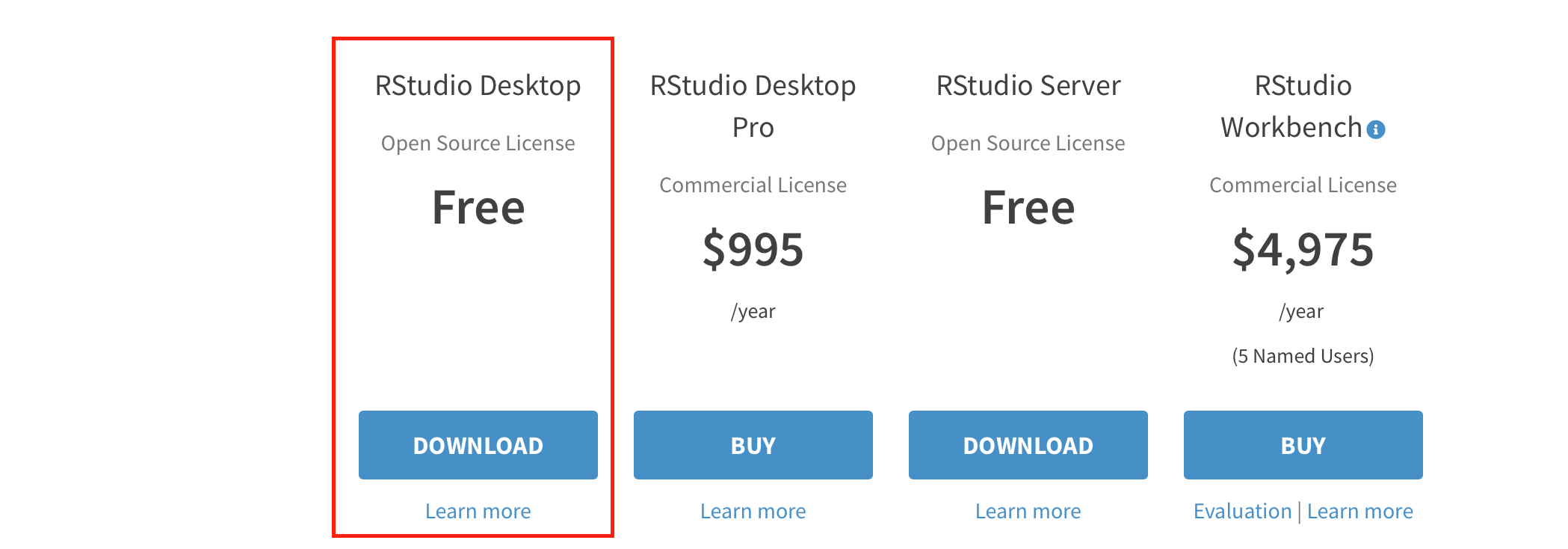
Then, click on the download button:
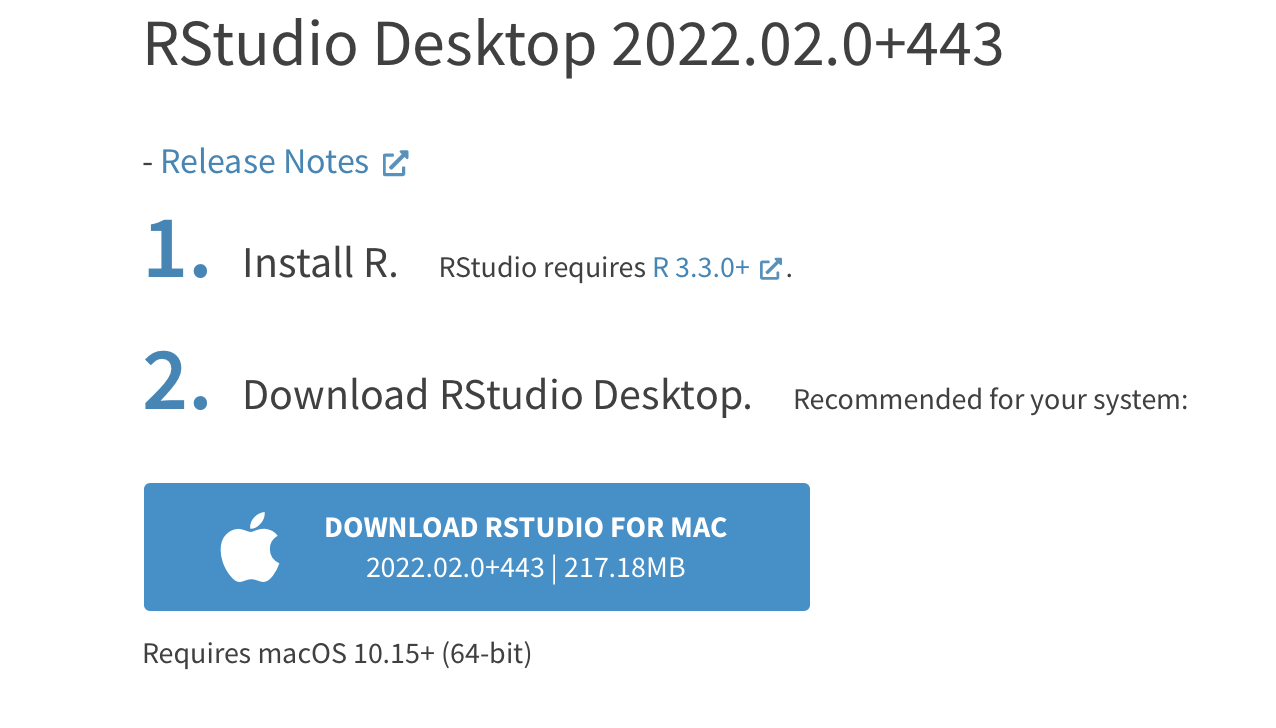
Proceed to install.